

Appearance
A tour of the bench
The bench app is one window: a sidebar on the left and the screen you are on to its right.
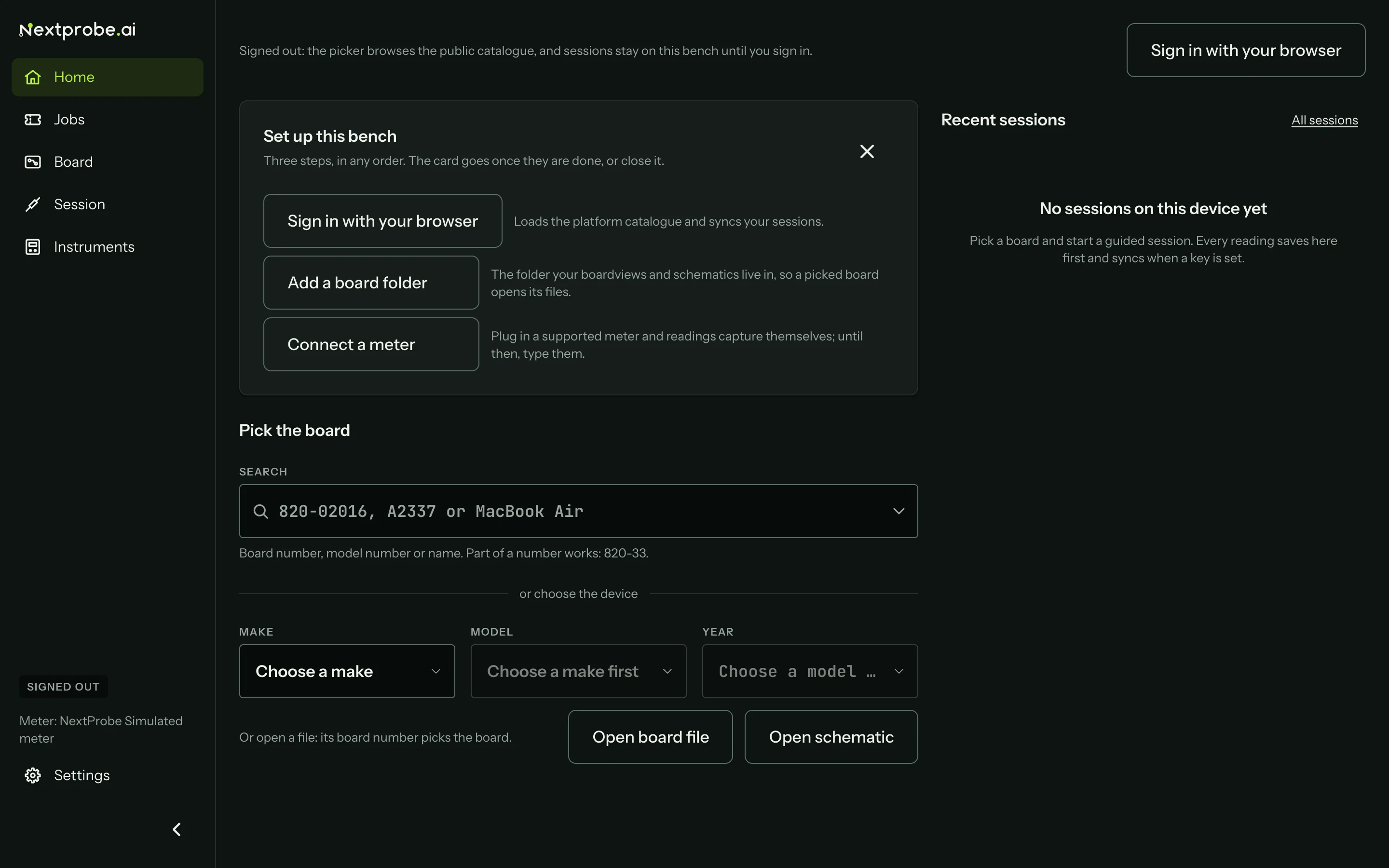
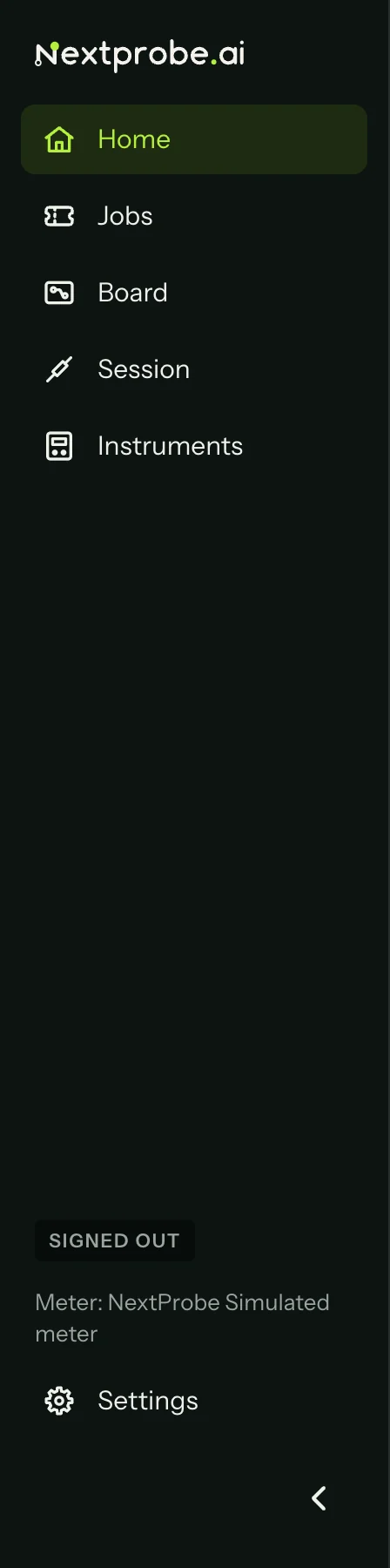
The sidebar down the left side is how you move around:
| Item | What it opens |
|---|---|
| Home | Pick a board, see its known faults, start a session, resume a recent one. |
| Jobs | Booked-in devices and your customers (Jobs). |
| Board | The board viewer with your board file open (The board viewer). |
| Session | The bench screen for the session in progress: the board, the step and the live reading (Start a session). |
| Instruments | Meters and bench supplies, connected or not (Supported hardware). |
| Settings | Pinned at the bottom (Settings). |
Above Settings, two status lines show the state of the bench. The first is sync: Signed out, Synced, Syncing, Offline, Retrying sync or Needs attention, with a count such as "4 to sync" while anything is waiting. It links to Settings → Account and sync. The second names the meter in use and links to Instruments.
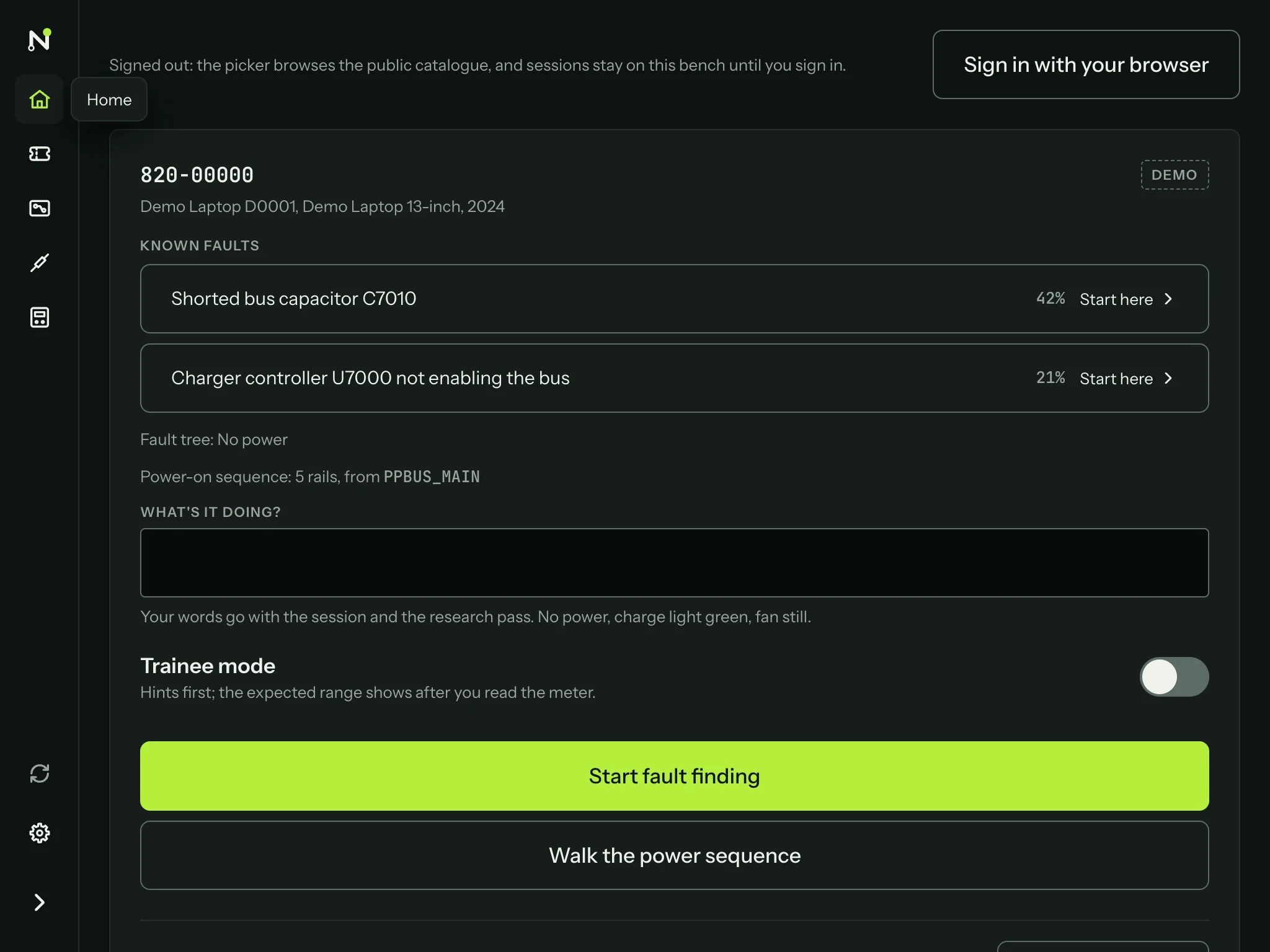
On a window narrower than 1100 pixels the sidebar folds to a rail of icons, so the board keeps its width. Hover over an icon to see its name. The chevron under Settings pins the sidebar open or folded, and the bench remembers your choice.
The window comes back where you left it, at the same size. Closing it, or quitting, lets the last reading finish saving first; you may see "Saving your last reading" for a moment.
Menus and keys
On a Mac, NextProbe has the usual menu bar. The File menu holds Open Board File… (⌘O), Open Schematic… (⇧⌘O), Print… (⌘P), Print Tech Report…, Print Job Sheet… and Print Customer Report…; the print items are dimmed when there is nothing to print. Settings… (⌘,) and Check for Updates… are in the NextProbe menu. NextProbe Help, Report a Problem… and Show Log Folder are in the Help menu.
On Windows there is no menu bar. Use the sidebar, or the keys: Ctrl+O opens a board file, Ctrl+Shift+O a schematic, Ctrl+P prints, Ctrl+, opens Settings and F1 opens this help.
You can also drag a board file or a schematic PDF from Finder or File Explorer onto the window. On a Mac, NextProbe appears under Open With for board files and PDFs. It never takes over those file types from the apps that own them.
The full list of keys is in Keyboard shortcuts.