

Appearance
Start a session
A session takes a board from its symptoms to a named fault, one step at a time, with your hands on the probes. Every answer, reading, note and photo is saved on the bench the moment it happens.
Starting a session
- Start fault finding on the board card on Home, or in the Board screen's header. The session opens with the symptom questions.
- Start here beside a known fault on the board card. The session goes straight to the step that tests that part, and records the questions as skipped. It still stops on any step on the way that carries a warning or needs the power state confirmed.
- Start diagnosis on a job (Jobs), which picks the job's board and carries the customer's description as the symptoms.
Open your board file first if you can (Open your board files), so the steps have a board to light. Without it, the board pane says "No board file open" and names the point instead.
The session screen
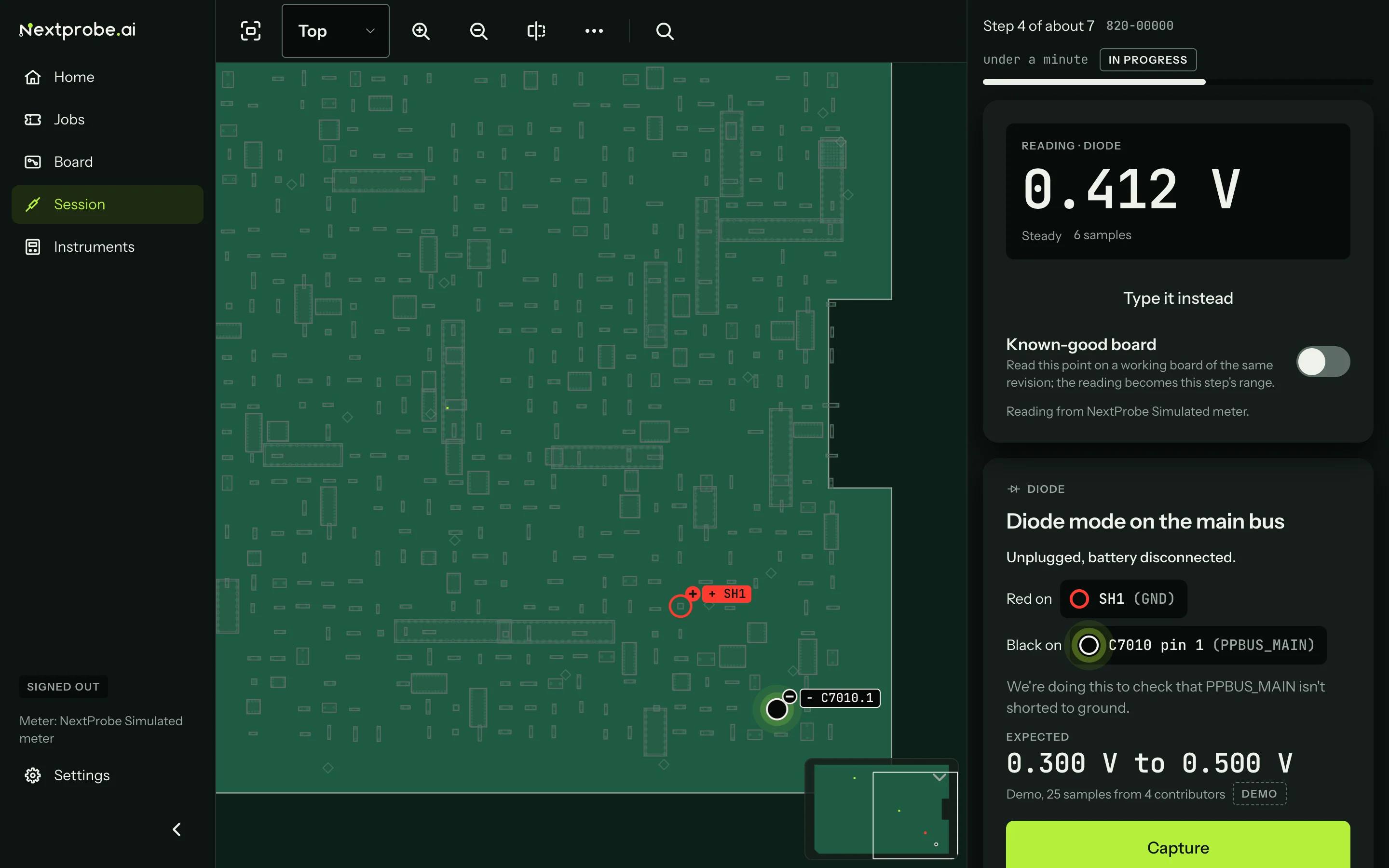
The board fills the left of the screen with the viewer's usual toolbar (The board viewer). The inspector opens as a drawer over the board's right edge, so the step column never moves.
The column on the right runs, from the top:
- The progress line: "Step 4 of about 7", the board number, the time at the bench and the session's status. The step count is an estimate from the most likely path, and it changes as readings send the session down other branches.
- The step card, or the question.
- On a measure step, the Reading panel, which stays pinned at the top of the column as you scroll.
- Back, Repeat and Skip.
- Ask about this board, then the session tools: Walk the power sequence, Went in liquid and End session (Tools in a session).
- The keys you can press, the voice bar, and the timeline.
Leaving and coming back
You can leave the session screen at any time: look something up on Home, open a job, change a setting. Session in the sidebar brings you back to where you were. Everything is already saved, so closing the app is safe too. The next time you open NextProbe, Home offers to continue the session that was open (Find and resume sessions).