

Appearance
The web app
The web app at app.nextprobe.ai is the same workspace as your bench, opened in a browser. Sessions, jobs, customers and reports from every bench in the shop land here once each bench syncs. It is also where the shop owner manages benches, people, billing and data.
You need a NextProbe account to use it. Creating the account and signing a bench in are covered in Account and sign-in. The web app runs in any current browser. The lite bench described below needs Chrome or Edge.
The sidebar on the left holds Home, Jobs, Boards, Sessions, Reports, Shop and Training, with Settings pinned at the bottom. The bell and your workspace name sit at the top right of every page.
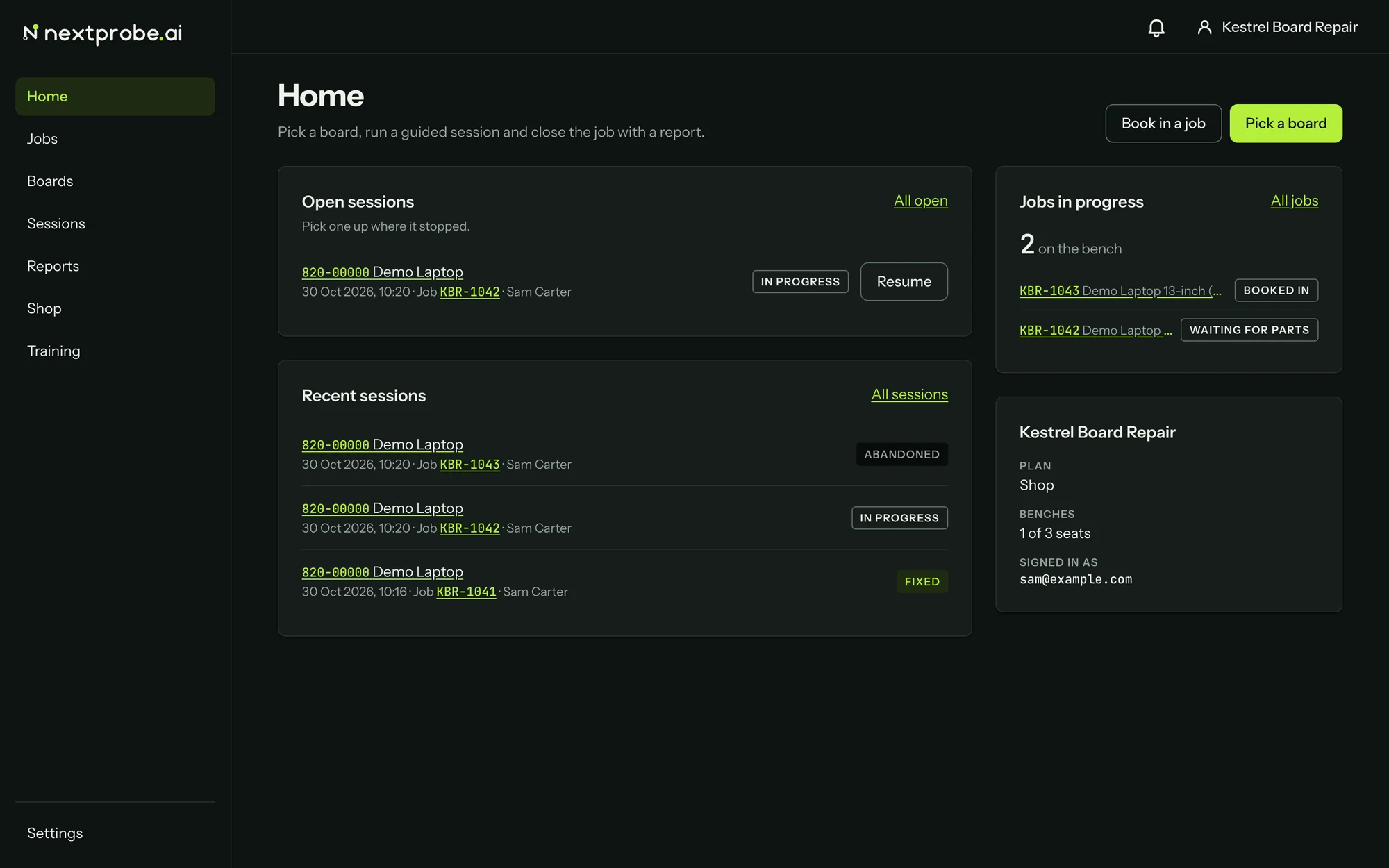
Home shows what needs you now:
- Open sessions: sessions still running, with Resume on each.
- Recent sessions: the latest sessions with their status. All sessions opens the full list.
- Jobs in progress: how many jobs are on the bench, with the newest listed. All jobs opens Jobs.
- The workspace card: your plan, how many bench seats are in use and the email you are signed in with.
Book in a job and Pick a board, top right, start the two things a shop does most.
The account menu
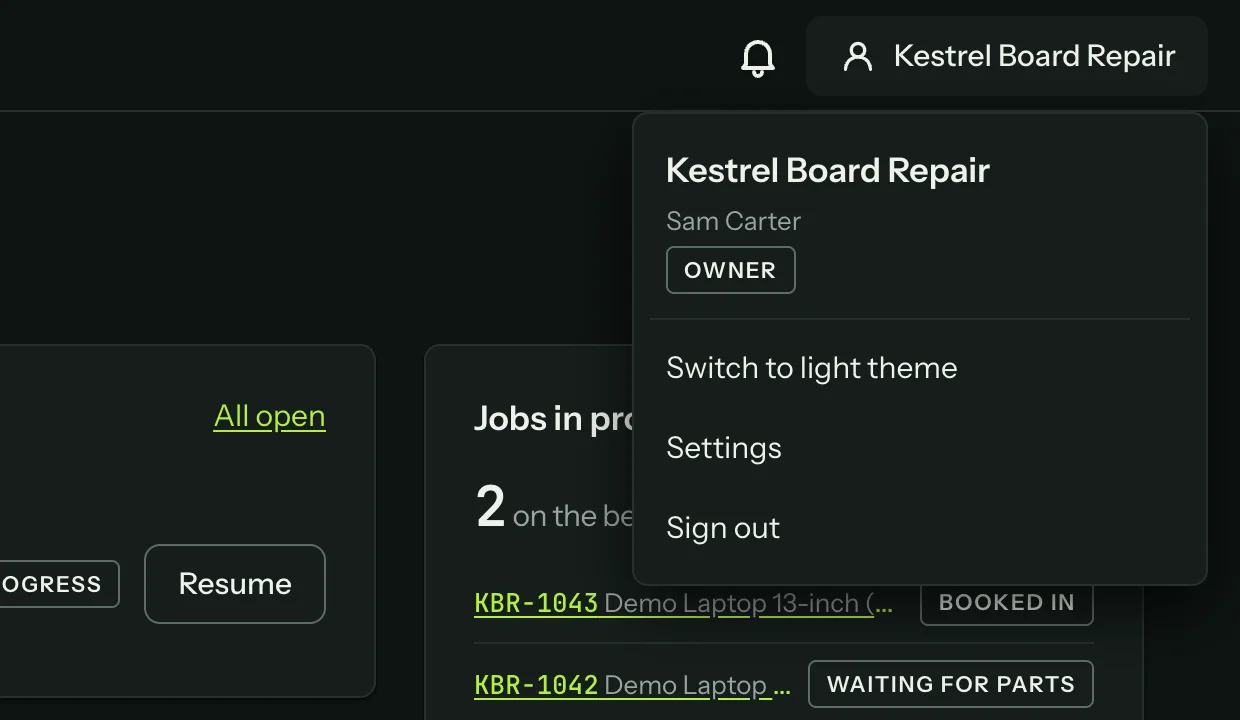
Click your workspace name at the top right to open the account menu. It names the workspace, you, and your role in it (Owner, Tech, Trainee or Viewer). If you belong to more than one workspace, they are listed under Work in, and picking one switches every page to it. Below that are Switch to light theme (or dark), Settings and Sign out.
Notifications
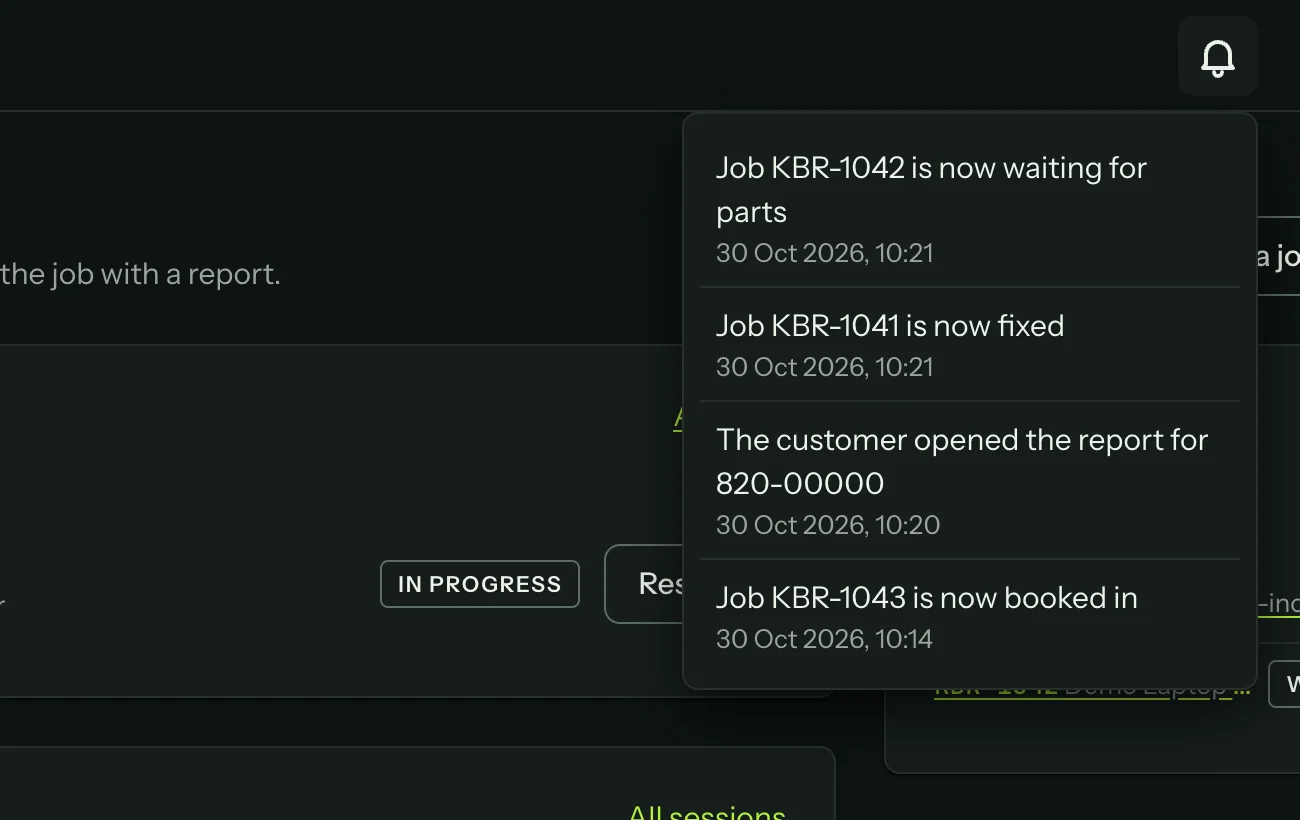
The bell lists what changed in the last seven days: a job moving to a new status, and a customer opening a report you shared. Click a line to open the job or the report it names. With nothing new, it says "Nothing in the last 7 days. A job changing status or a customer opening a report shows here."
When a page will not load
Every page uses the same few messages:
- "The platform API is not answering": NextProbe's servers could not be reached. Press Try again, and check your connection.
- "The API refused the request", or "This key cannot do that": your sign-in does not allow that action. A Viewer cannot book in jobs, for example. Ask an owner to change your role.
- "Something went wrong on our side": nothing you saved is lost. Press Try again.
- "There is nothing at this address": the link is wrong or the item was removed. Back to Home takes you to Home.
Troubleshooting has more.