

Appearance
The board viewer
The Board screen is a full boardview viewer. If you have used FlexBV or OpenBoardView, the layout will be familiar: the toolbar across the top, the board in the middle and the inspector on the right. The same viewer sits on the left of the session screen, where NextProbe lights the point to measure.
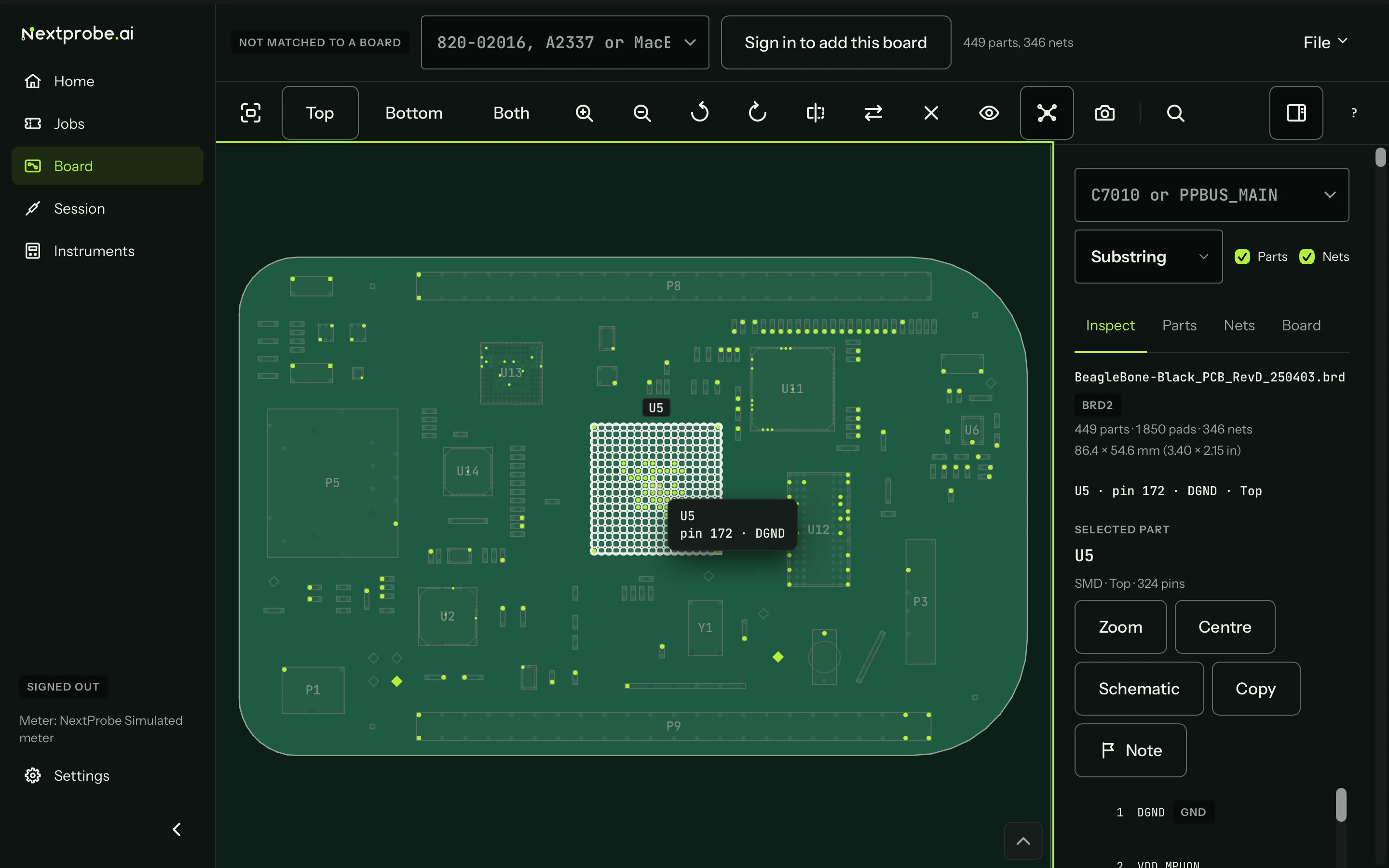
Every session opens with the whole board in view, fitted and centred. NextProbe only zooms in when a step lights a part or you ask it to.
The toolbar

From left to right:
| Button | What it does | |
|---|---|---|
| Fit | Fits the whole board in the view. The 0 key does the same. | |
| Top, Bottom, Both | Which side of the board to show. Both shows the two sides next to each other. | |
| Zoom in, Zoom out | Zooms on the centre of the view. The plus and minus keys do the same. | |
| Rotate left, Rotate right | Turns the board 90 degrees. The comma and full stop keys do the same. | |
| Flip | Turns the board over, as you would in your hand: the side swaps and the view mirrors. F does the same. | |
| Mirror | Mirrors the view without changing side. Shift+F. | |
| Clear | Clears the selection and the Find field. Esc does the same while the board has focus. | |
| Hidden parts | Shows or hides parts the file marks as hidden. | |
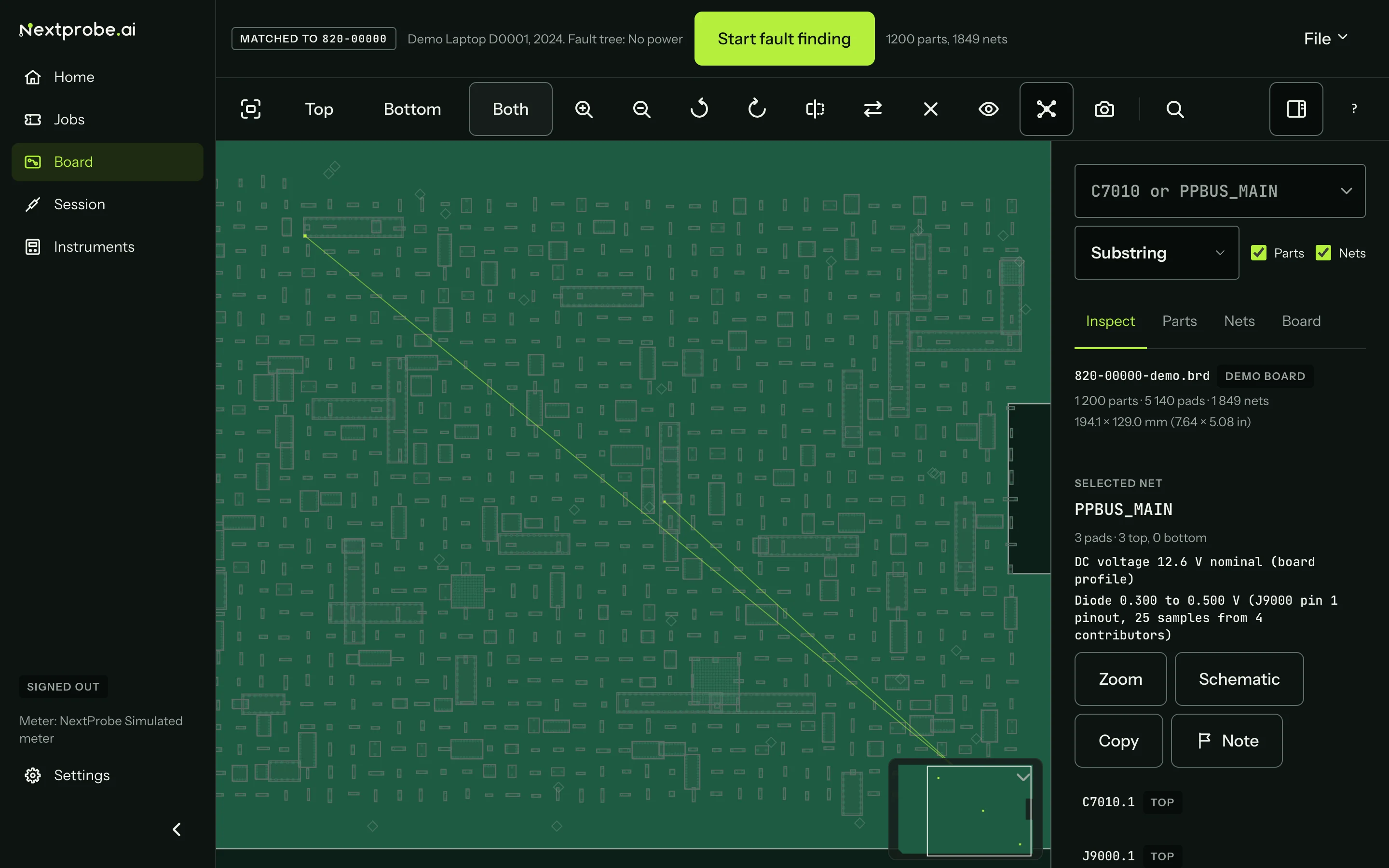
| Net web | Cycles the lines drawn between the pads of the selected net: off, net web, then constellation. | |
| Screenshot | Saves the board as you see it, labels included, as a PNG. | |
| Find | Opens the inspector with the Find field ready. The / key does the same. | |
| Schematic | Shows or hides the schematic beside the board, once one is open (Schematics). | |
| Inspector | Shows or hides the inspector. The I key does the same. | |
| ? | Keyboard shortcuts | Opens the keyboard shortcuts. |
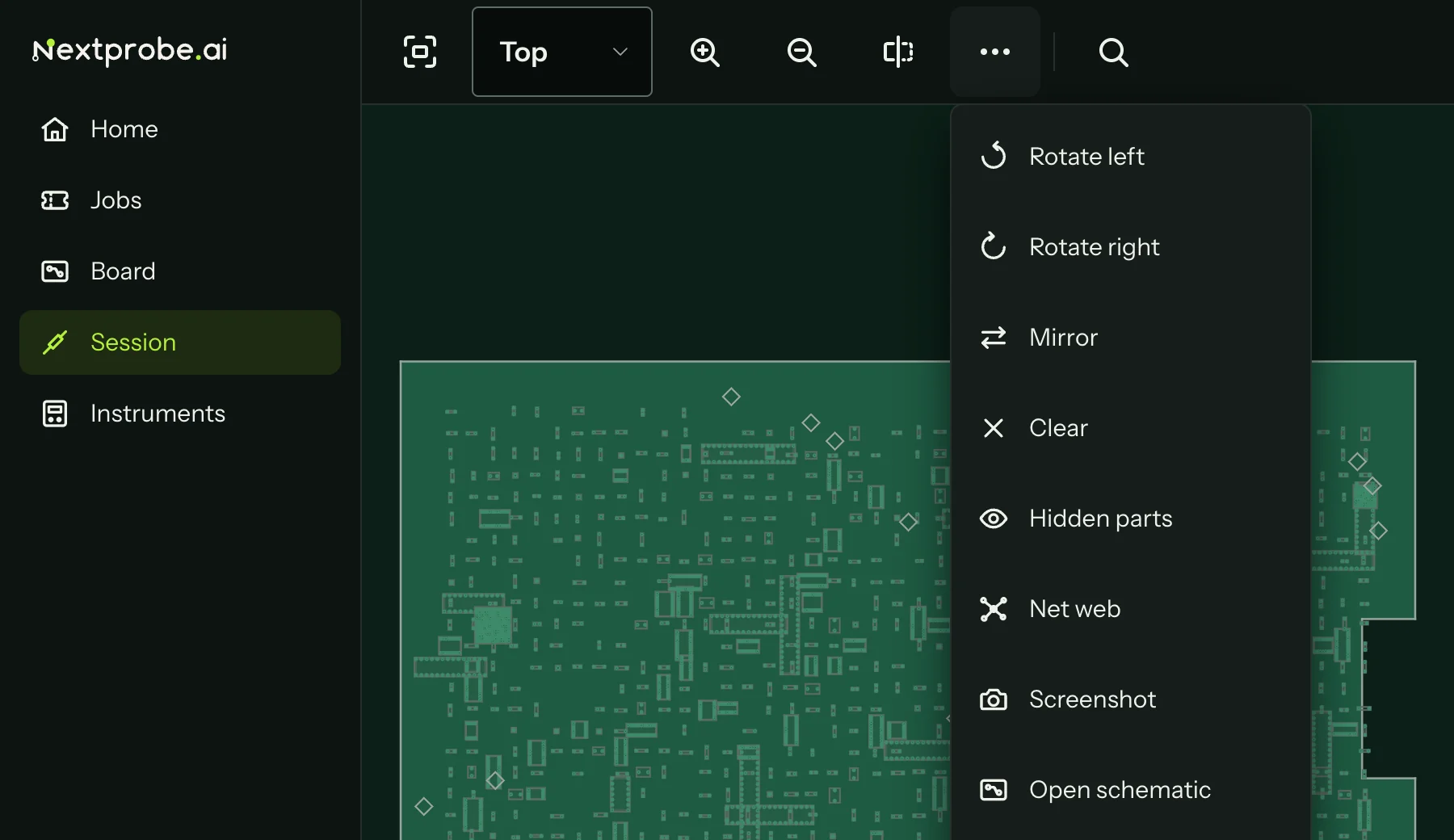
When the window is narrow, the toolbar drops its captions, then folds the less-used buttons behind More, so it never wraps or scrolls. Hover over any icon to see its name.
Moving around
Drag to pan, scroll to zoom, and use plus, minus and 0 to zoom and fit. W, A, S and D pan as well. The arrow keys are left free on purpose: on the session screen they go back and skip.
The minimap in the bottom corner shows where the view sits on the whole board. Drag its frame to move, or hide it from the Layers list.
Reading the board under the pointer
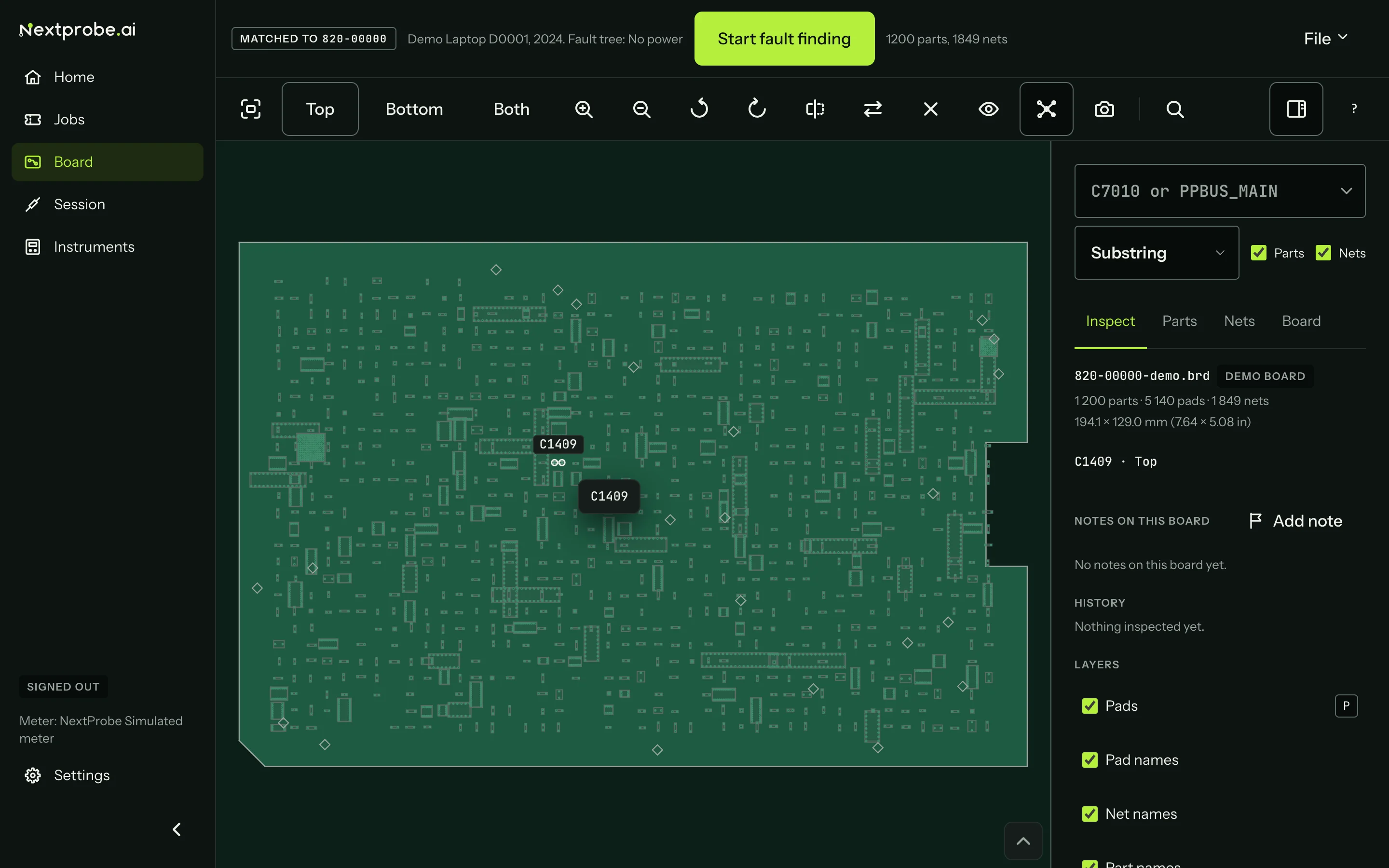
Move over the board and the inspector's status line names what is under the pointer: the part, the pin, the net and the side, for example C7010 · pin 1 · PPBUS_MAIN · Top. Over empty board it shows the position.
Both sides
Both shows top and bottom side by side, which helps when a rail runs between parts on opposite faces.
Saving a picture of the board
Screenshot on the toolbar saves the board exactly as you see it, labels and lead markers included, as a PNG named after the file, the side and the date. It is handy for a forum post or a message to a colleague. It contains only what is on screen, never the file itself.