

Appearance
Sign the bench in
A bench signs in the way most desktop apps do now: through your browser. You never type your password into the bench.
- On Home, press Sign in with your browser at the top right. (It is also on the Set up this bench card, and in Settings → Account and sync.)
- The bench shows a short code, such as
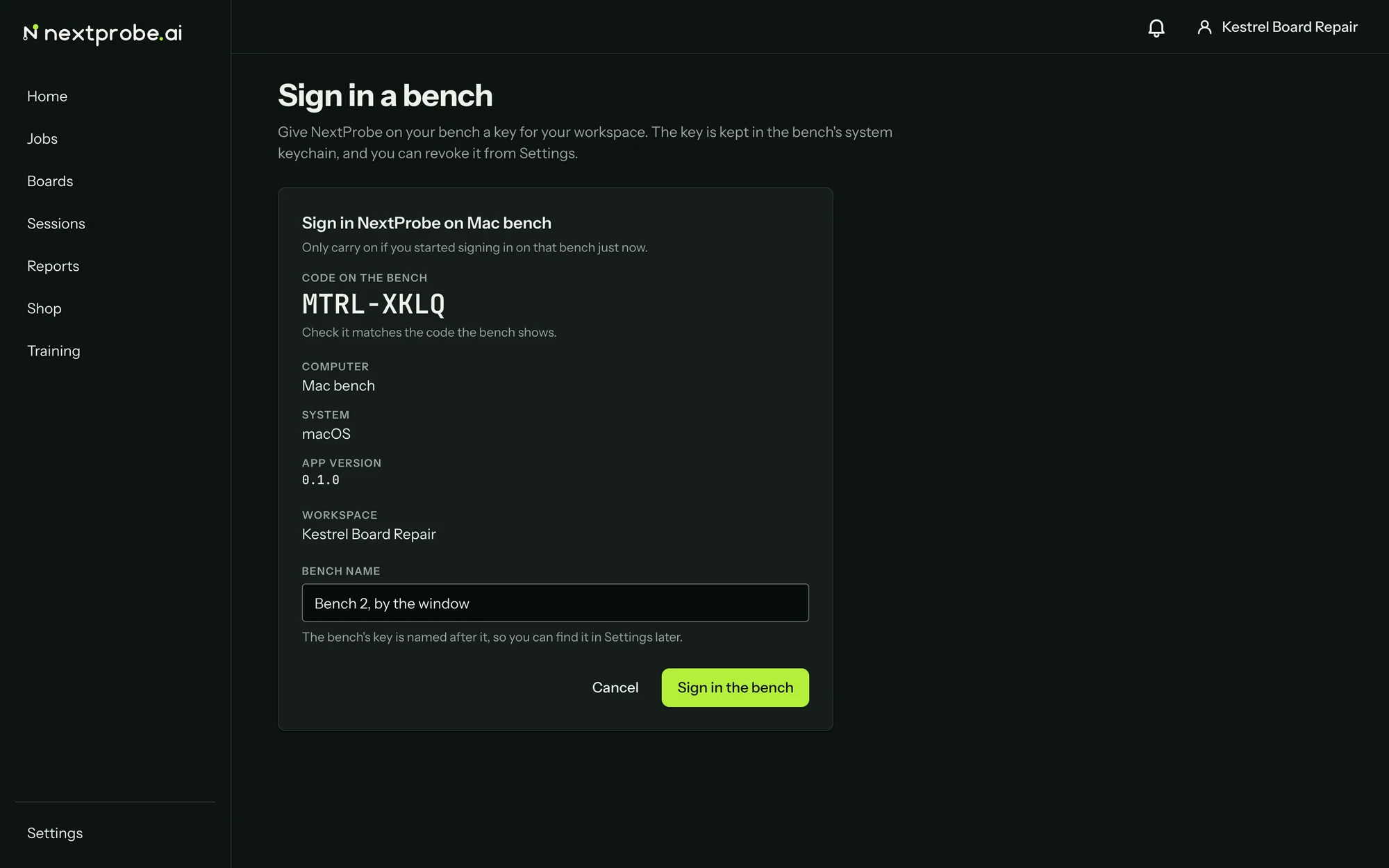
BCDF-GHJK, and opens app.nextprobe.ai in your browser. - In the browser, sign in if you are not already. The page is titled "Sign in a bench" and shows the same code. Check that the two codes match.
- Choose the workspace, give the bench a name your team will recognise ("Bench 2, back room"), and press Sign in the bench.
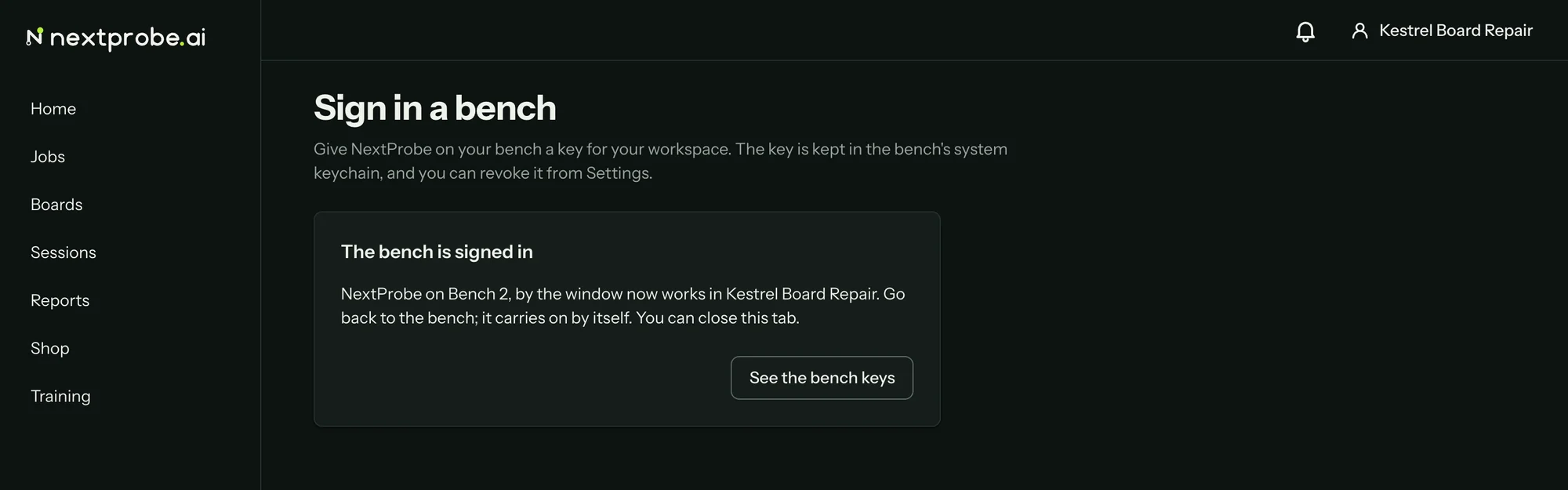
- Within a few seconds the bench says it is signed in, and the browser shows "The bench is signed in".
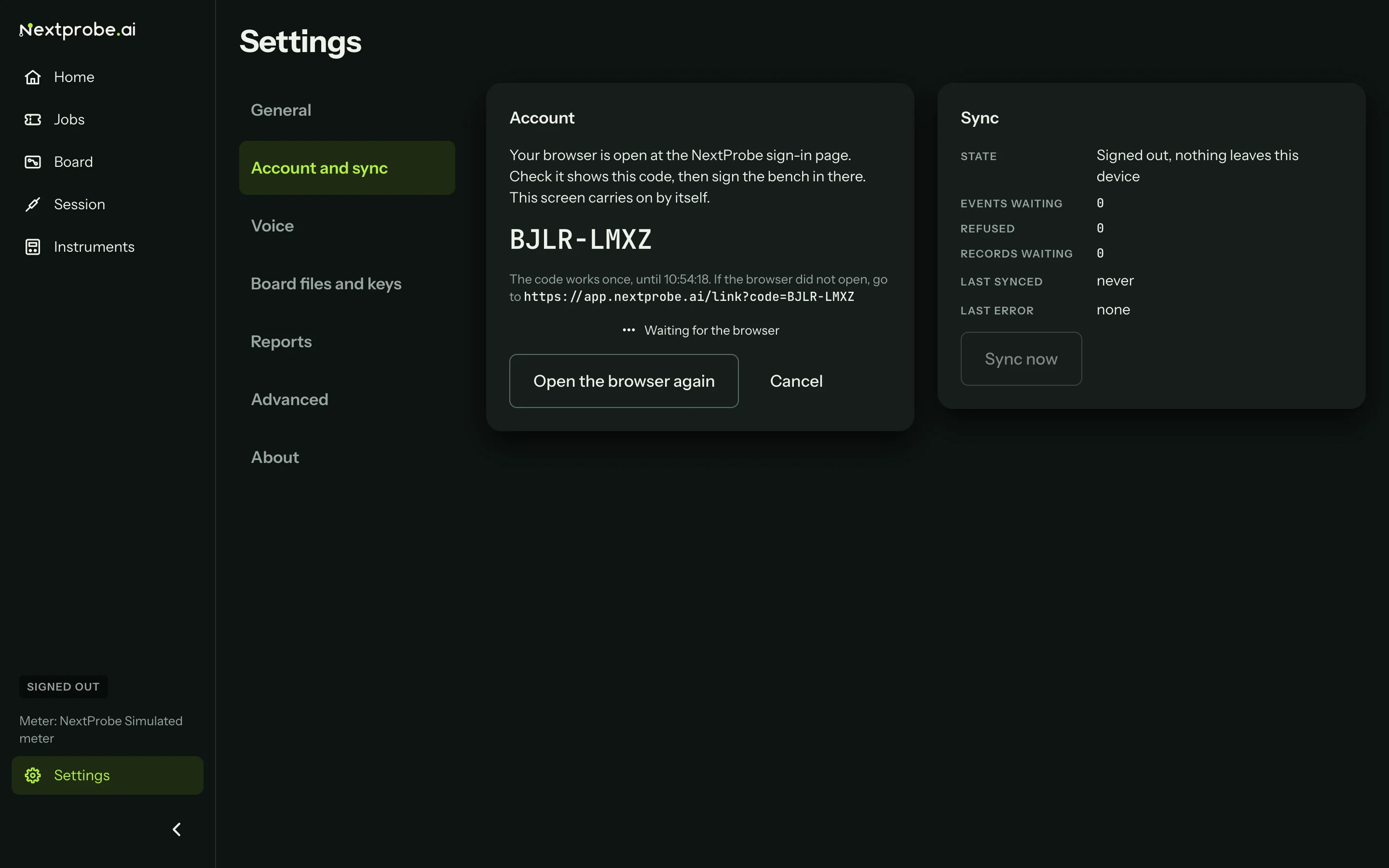
The code works for ten minutes and only once. If the browser window got lost, press Open the browser again. Cancel stops waiting.
Only owners and techs can sign a bench in. A trainee or a viewer sees "You cannot put a bench to work yet"; ask the workspace owner to sign the bench in or change your role.
What signing in changes
| Signed out | Signed in |
|---|---|
| The picker shows the public catalogue and the demo board. | The picker shows every board and fault tree your plan includes. |
| The simulated meter runs on the demo board. | Real meters and typed readings only; the simulated meter never runs on a real board. |
| Sessions, jobs and customers stay on this computer. | They sync to your workspace, so you can resume a session on another bench and see it in the web app. |
| When a fault tree runs out, the session can only stop there. | The bench can look for the next step in similar cases and on the web, and Ask works. |
| You can pair a phone (Pair a phone). |
Anything you did while signed out stays on the bench and starts syncing once you sign in.
Using a workspace key instead
A shared bench, such as one on a production line, can have a key of its own so that nobody's personal sign-in sits on it. Create a bench key in the web app (Settings → Bench keys → Create a bench key), copy it, then on the bench open Settings → Advanced, open Use a workspace key instead, paste it into Workspace key and press Save API settings. The bench confirms with "API settings saved". The key is kept in your computer's credential store (Keychain on a Mac, Credential Manager on Windows).
Signing out
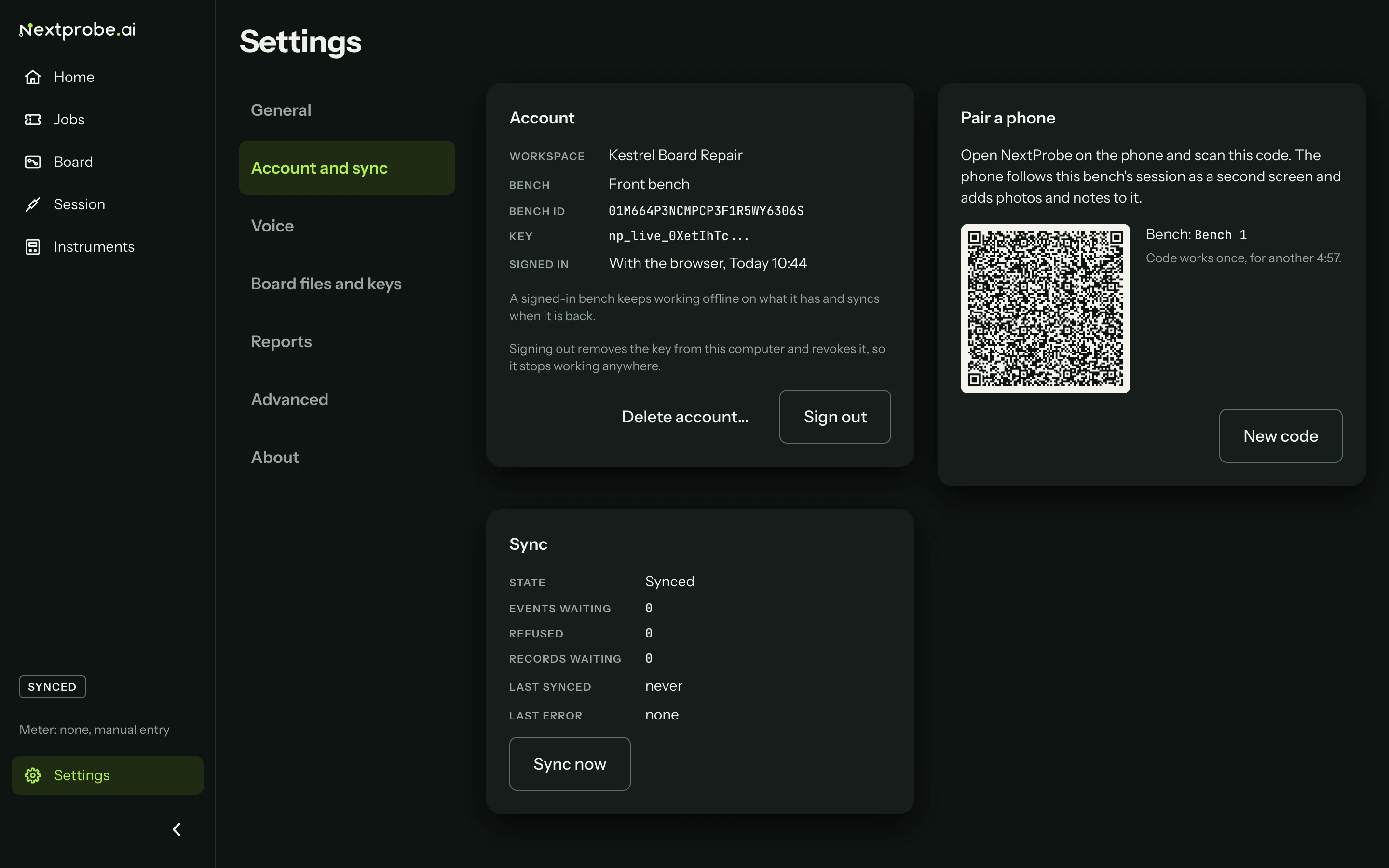
Open Settings → Account and sync, and press Sign out.
- If you signed in with the browser, signing out removes the key from this computer and revokes it, so it stops working anywhere.
- If you pasted a workspace key, signing out removes it from this computer only. The key stays live for any other bench that uses it; revoke it in the web app if it should stop.
Readings that have not synced yet stay on the bench and go once it is signed in again.
Deleting your account
Delete account in Settings → Account and sync explains what is removed and what stays, then opens your Settings page in the web app, where the deletion happens (Web app settings). Export your data first: the web app's Settings has Export my data next to Delete my account. Once the account is gone, sign the bench out too.
Something not working?
See Troubleshooting: signing in, or get help.