Appearance
Pair a phone
The bench must be signed in to your workspace first (Account and sign-in).
- On the bench, open Settings, then Account and sync, and find Pair a phone. It shows a QR code with the bench's name and a five-minute countdown. A new code replaces it when the time runs out.
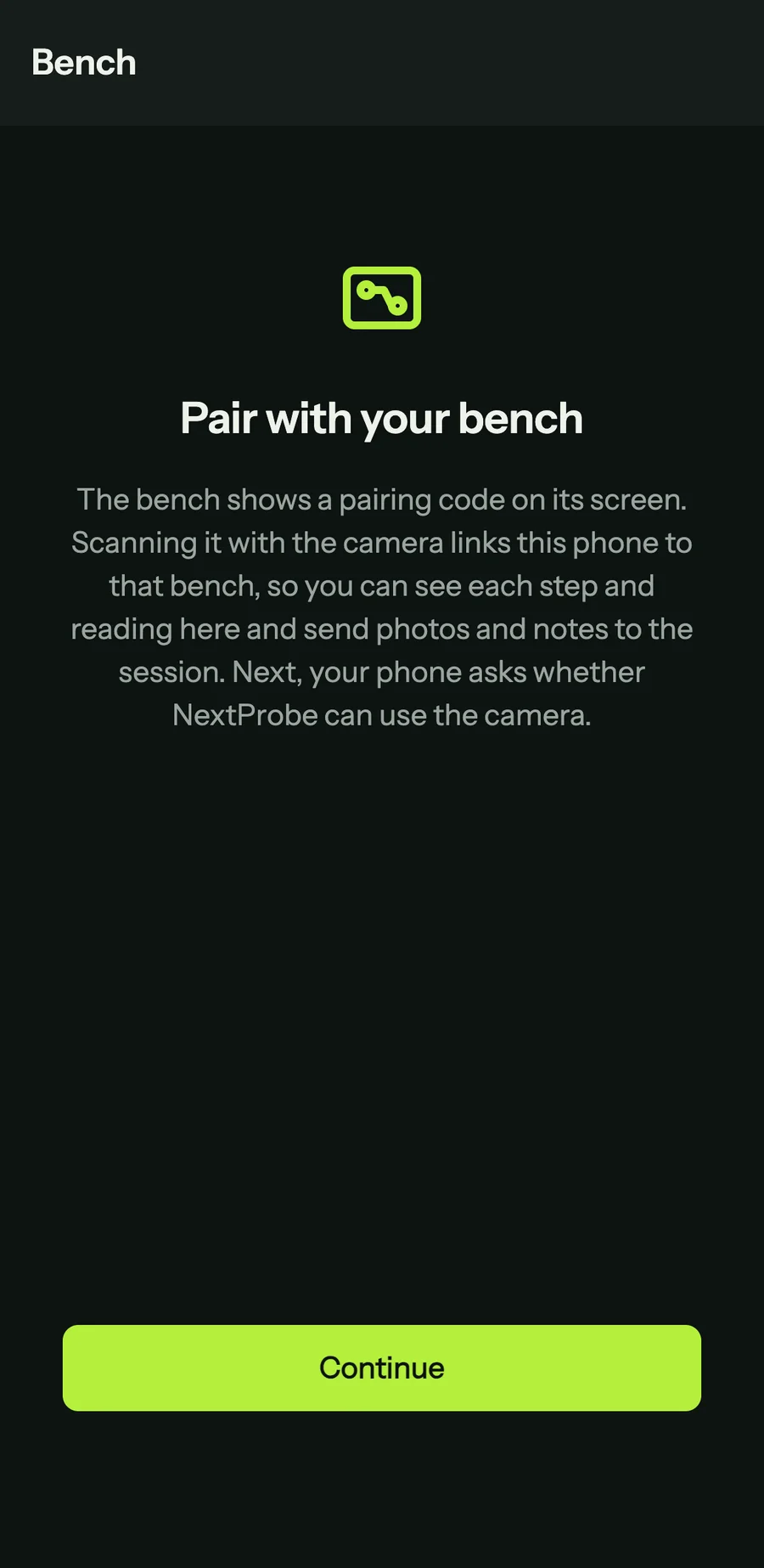
- On the phone, open the Bench tab. The screen says "Pair with your bench". Press Continue.
- The phone asks whether NextProbe can use the camera. Allow it.
- Point the camera at the code on the bench screen. The phone shows "Pairing with" and the bench's name, then switches to the second screen.
Each code works once. The key the phone receives is kept in the phone's secure storage and is tied to that bench. To move the phone to another bench, use Pair with a different bench on the Profile tab.
If pairing fails
The Bench tab shows "Not paired" with the reason and Scan again:
- "This pairing code has expired. Start pairing again on the bench." The five minutes ran out. The bench shows a fresh code, so scan that.
- "This pairing code has already been used. Start pairing again on the bench." Another phone, or an earlier try, claimed it. Scan the new code the bench shows.
- "That is not a NextProbe pairing code. Point the camera at the code on the bench screen." The camera read some other QR code.
If the camera was refused, the tab says "The camera is off for NextProbe". Press Open Settings, allow the camera for NextProbe, and come back.