Appearance
Photos and voice notes
The phone adds to the session that is open on its bench: photos of the board, and voice notes.
Camera
The Camera tab takes board photos and adds them to the session open on the bench. The first time, the phone shows "Take board photos" and asks for the camera when you press Continue.
The viewfinder has a torch button and 1x, 2x and 4x zoom. Take the picture, then fill in Part (optional) with the reference the photo shows, such as C7010, and Caption (optional). Add to the session saves it to the session's timeline, where it shows on the bench and on reports made while the bench is online. Retake throws the picture away. After a save the screen says "Saved to the session" with Take another.
The tab needs a paired bench with a session open. Otherwise it says "Pair with a bench first" or "No open session".
Voice
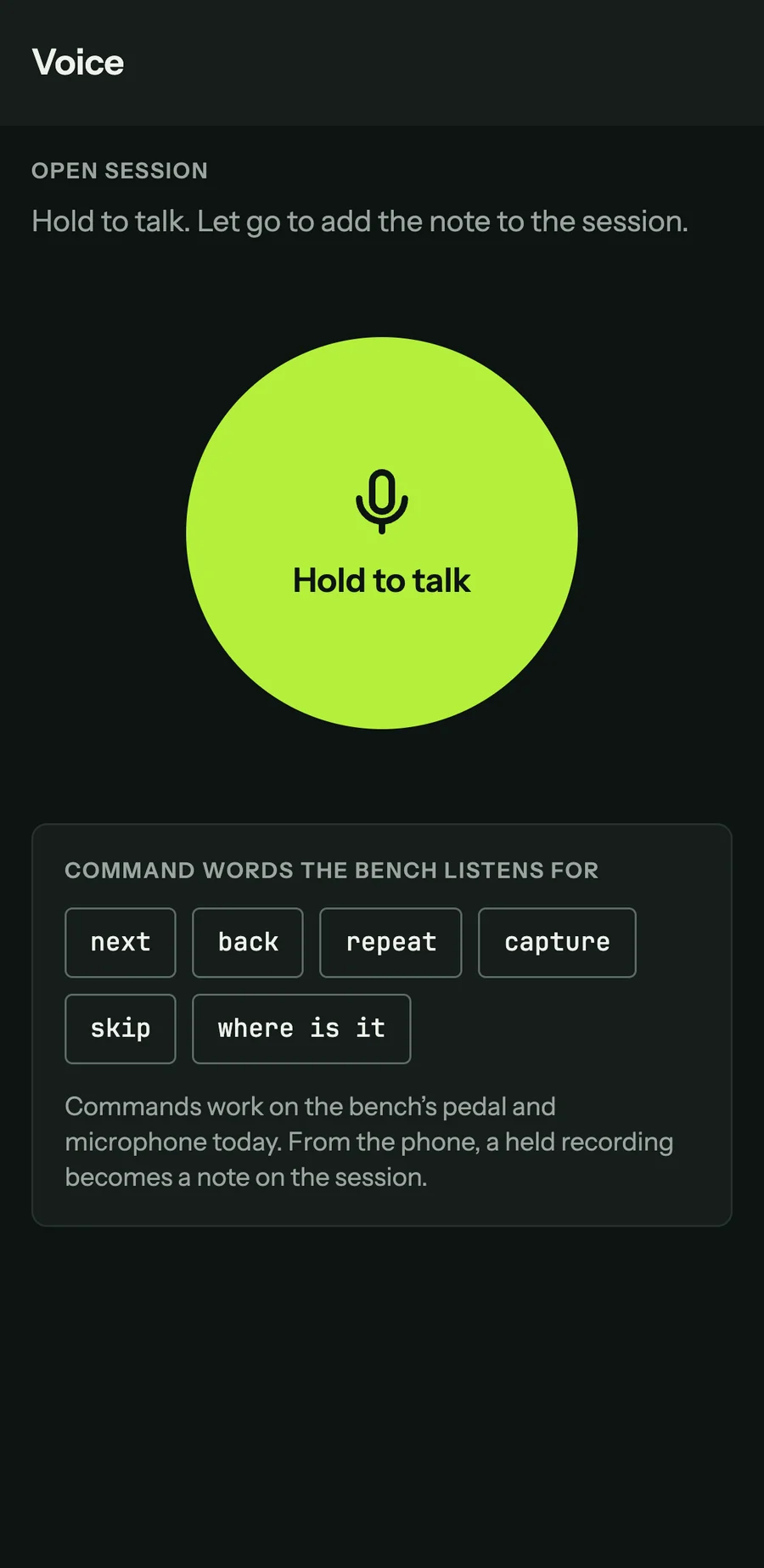
The Voice tab records a note against the open session. The first time, the phone shows "Talk to the session" and asks for the microphone when you press Continue.
Hold Hold to talk while you speak and let go to finish. While you hold it the button reads Listening. When you let go, the phone adds a note to the session timeline saying a voice note was recorded and how long it ran, and shows "Note added". The recording itself stays on the phone. If the note cannot be added, the screen says "Note not added" with Try again.
The card below lists the command words the bench listens for (next, back, repeat, capture, skip, where is it). Those commands are spoken at the bench, through its microphone and push-to-talk key or foot pedal.