

Appearance
The lite bench
The lite bench runs a guided session in the browser. Use it on a laptop at the counter, on a second bench without the desktop app, or for practice. It follows the same fault trees, verdicts and safety checks as the bench app, with a simpler screen: no board file, no schematic and no voice. For a full session with your boardview and a live meter, use the bench app (Running a guided session).
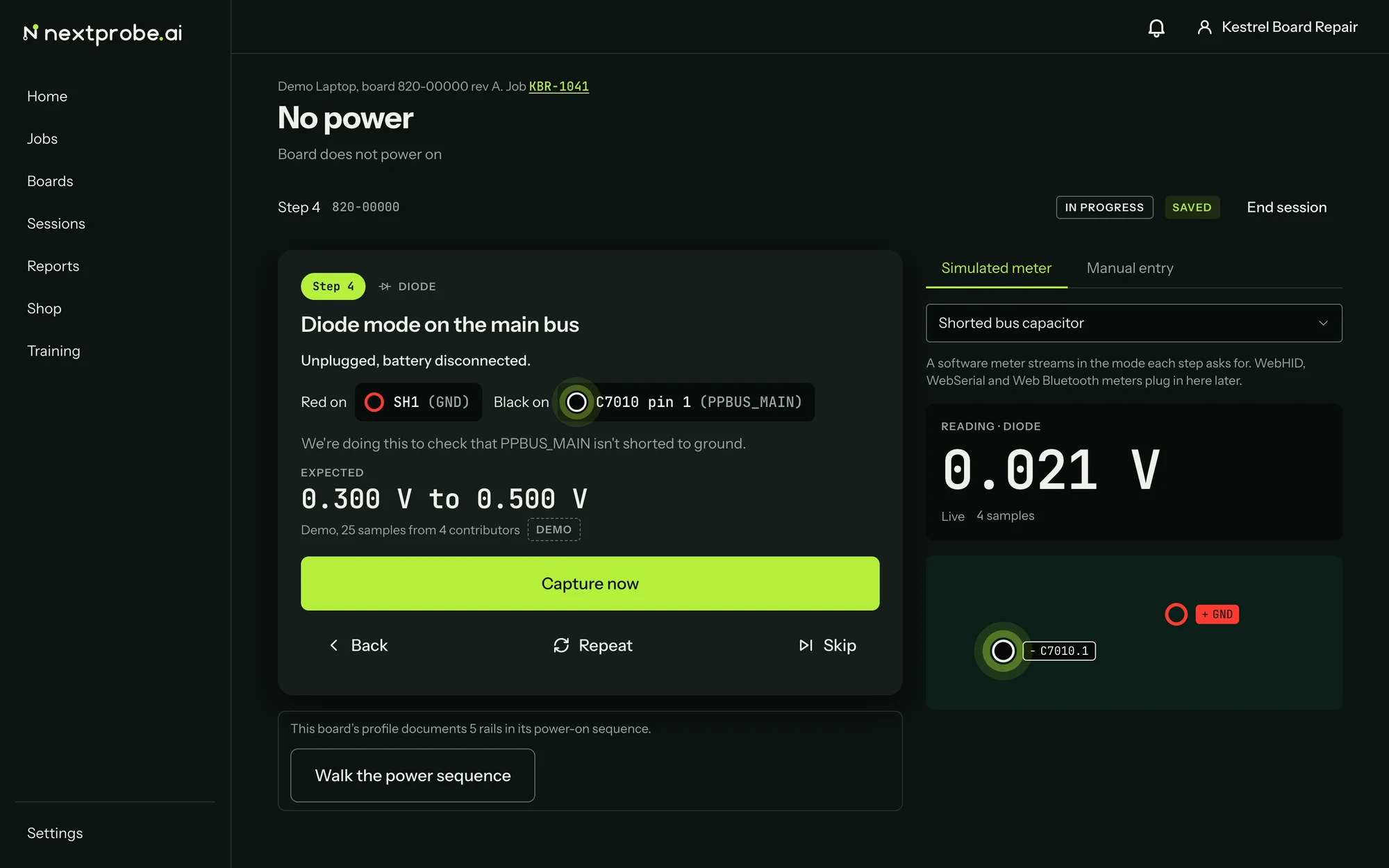
The step card takes the left of the screen and the reading the right. A small board map under the reading shows where the red and black leads go.
Taking readings
Above the reading are two tabs:
- Manual entry: type what your meter shows into the field and press Enter. The field takes the same forms as the bench app (
0.412,1.2k,150mV,OL). - Simulated meter: a scripted meter for practice and demonstrations. Choose Healthy board or Shorted bus capacitor and it streams readings in the mode each step asks for. Use it to learn the flow or to show a new tech how a session runs. It never takes a reading from a real board.
Capture now takes the reading in front of you. Back, Repeat and Skip work as they do on the bench. A step that needs the board powered or unpowered asks you to confirm the power state first, and a step with a warning shows it in an amber "Before you probe" box above the instructions.
The badge beside the status says whether your work is saved:
- Saved: everything is on the platform.
- Offline, N kept on this device: the browser has lost the connection. The answers and readings are kept in this browser and go out when it comes back, through a reload too.
- Saved elsewhere: another device moved the session on, so the page shows the platform's copy.
If a save fails, the page says so and offers Try saving again.
Diagnosis and the fix
When the tree names a part, the step card turns into the diagnosis: the likely part with its value, the confidence, the evidence from your readings, the fix and the donor boards. Back a step undoes the last answer if you think a reading was wrong.
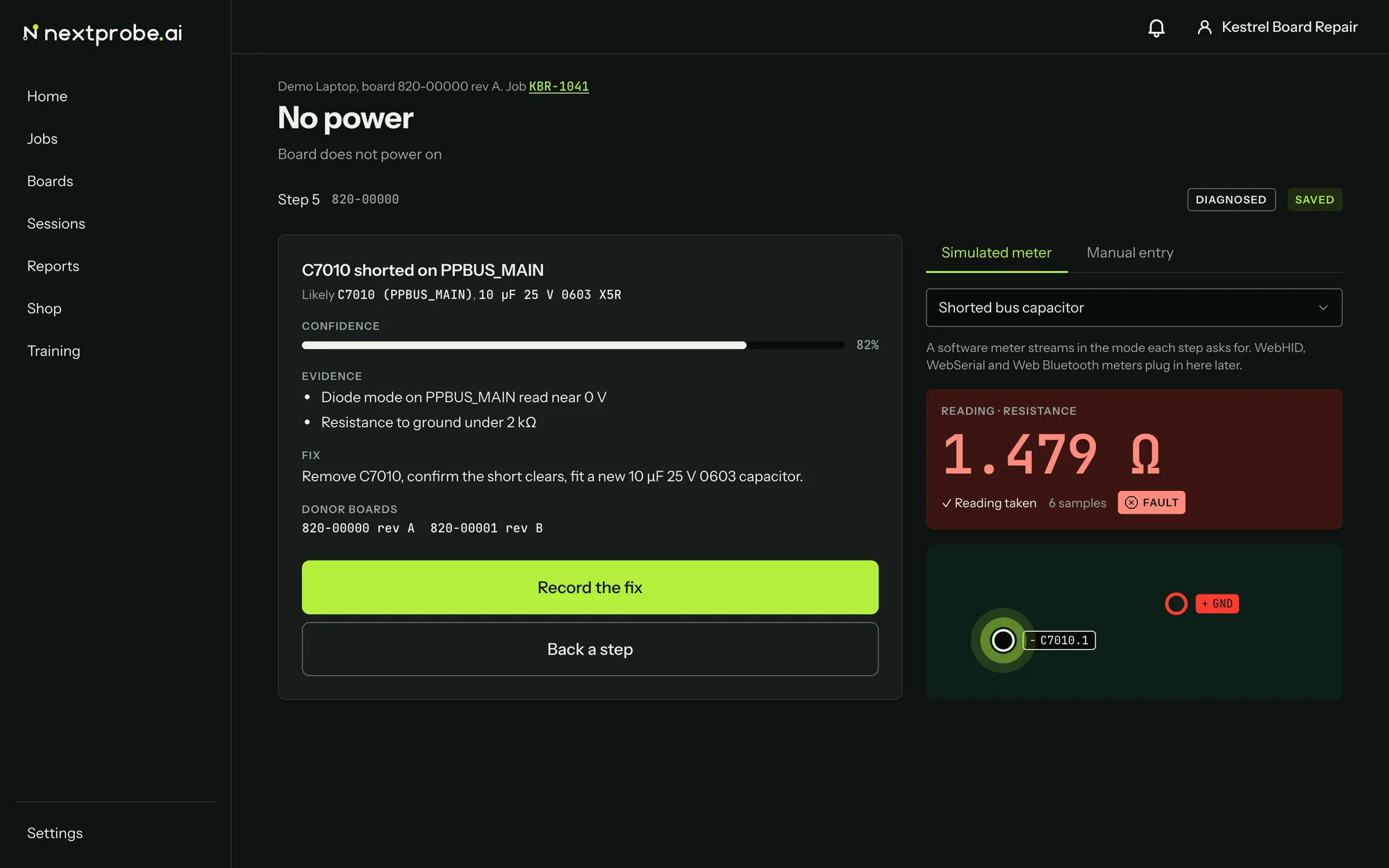
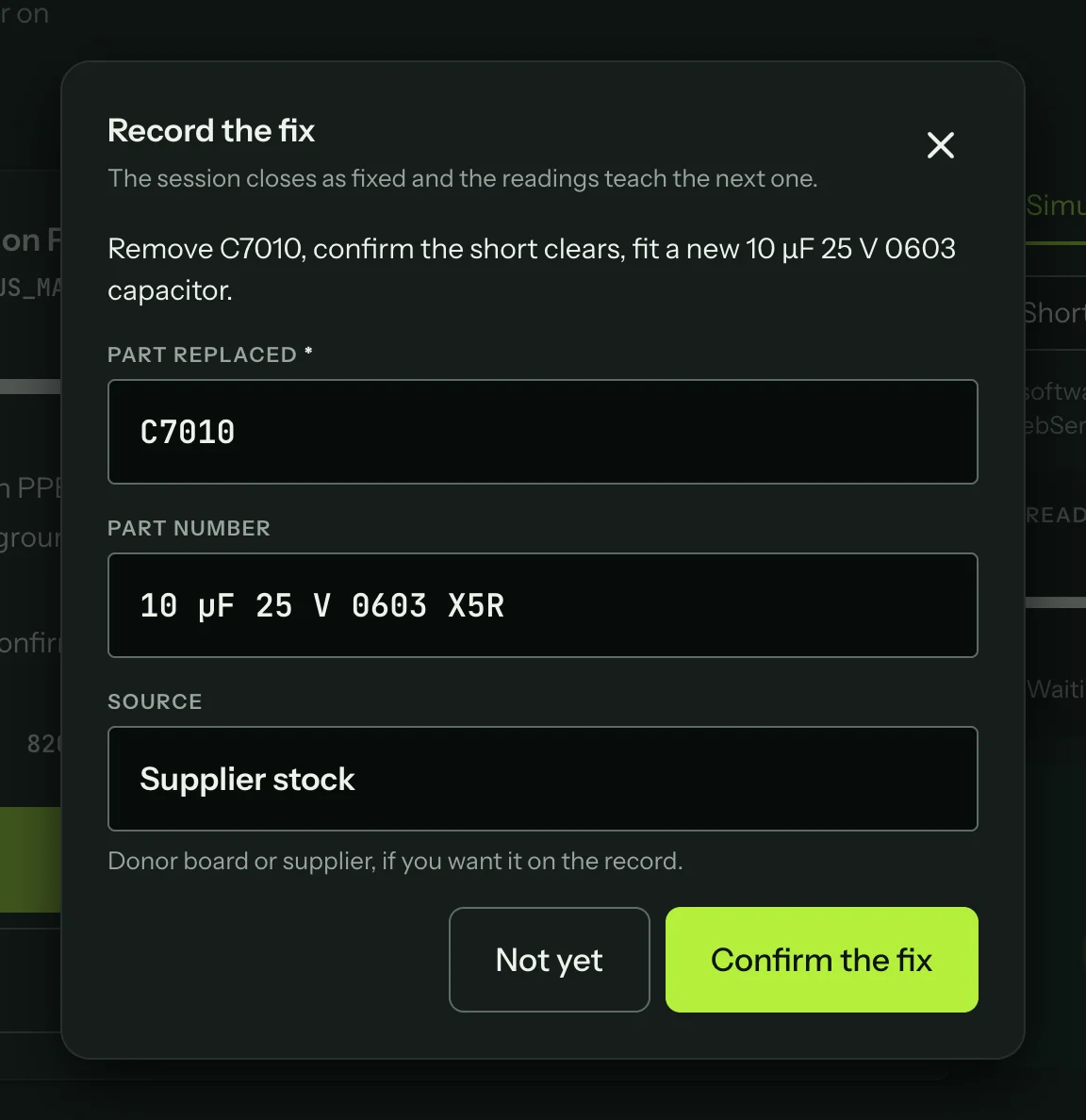
Record the fix opens a short form: Part replaced (needed), Part number and Source (the donor board or supplier, if you want it on the record). Confirm the fix closes the session as fixed. Not yet takes you back.
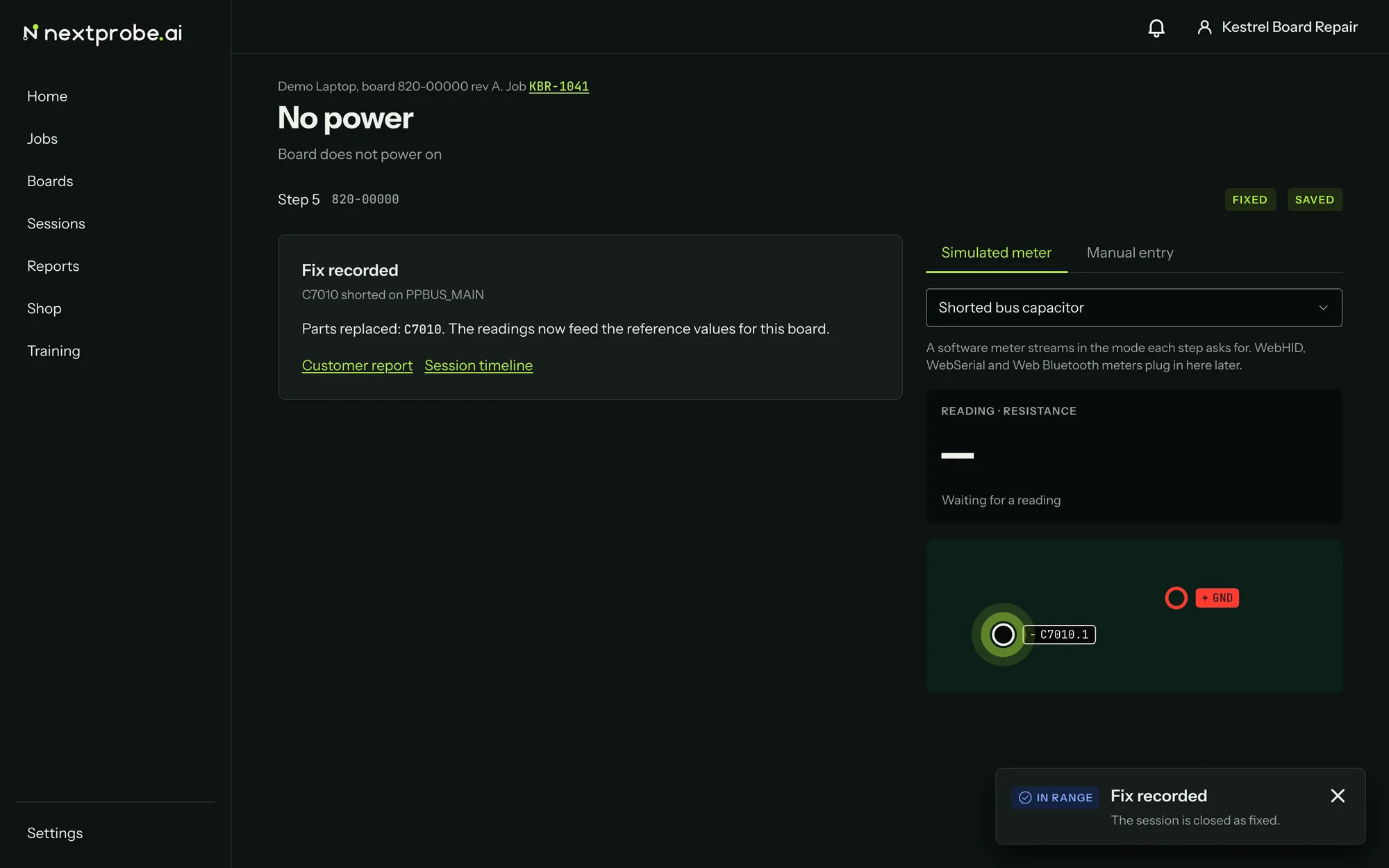
Once the fix is recorded the card says "Fix recorded", lists the parts, and links to the Customer report and the Session timeline.
Ending a session without a fix
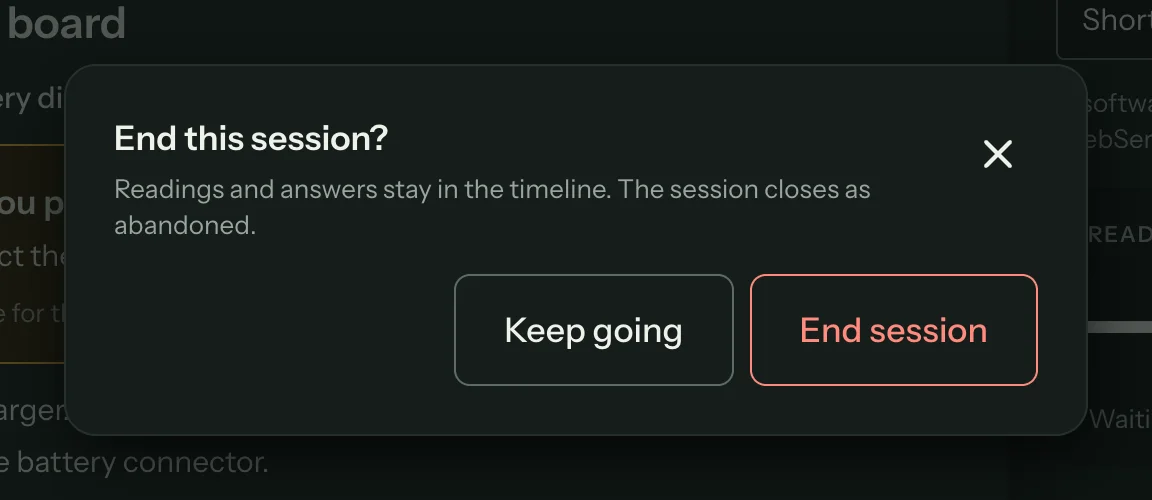
End session, at the top right of the session, asks "End this session?". The readings and answers stay in the timeline and the session closes as abandoned. Keep going leaves it open.
Walk the power sequence, under the step card, starts the power sequence walk on boards whose profile documents one. It reads each rail in power-on order and stops at the first rail out of range (Running a guided session explains the walk in full).