Appearance
Jobs in the web app
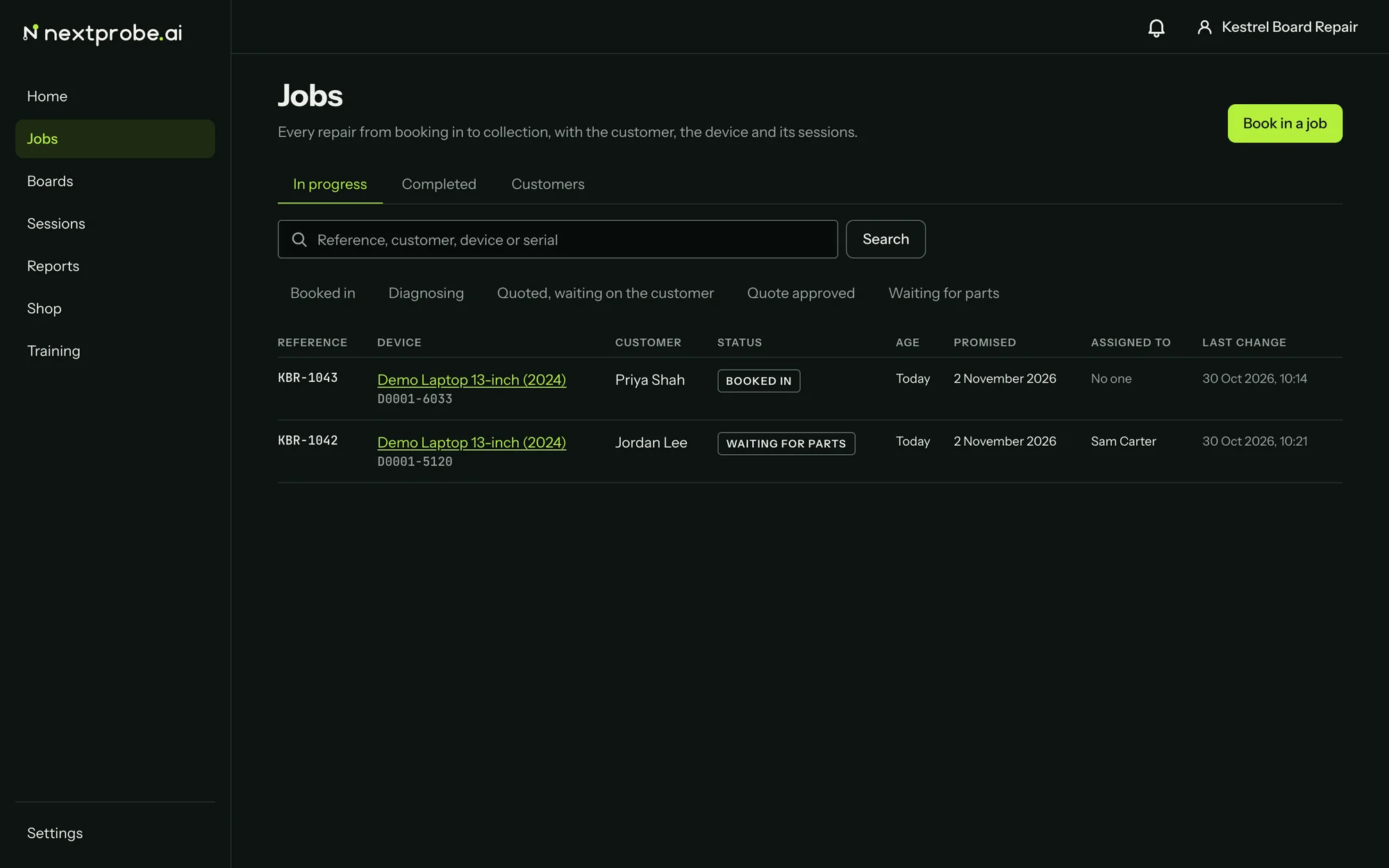
Jobs in the web app are the same jobs as on the bench, synced both ways, so a job booked in at the counter on a laptop shows up on every bench. Jobs and customers explains the job statuses, the counter checklist and the parts list in full. This section covers where things are in the browser.
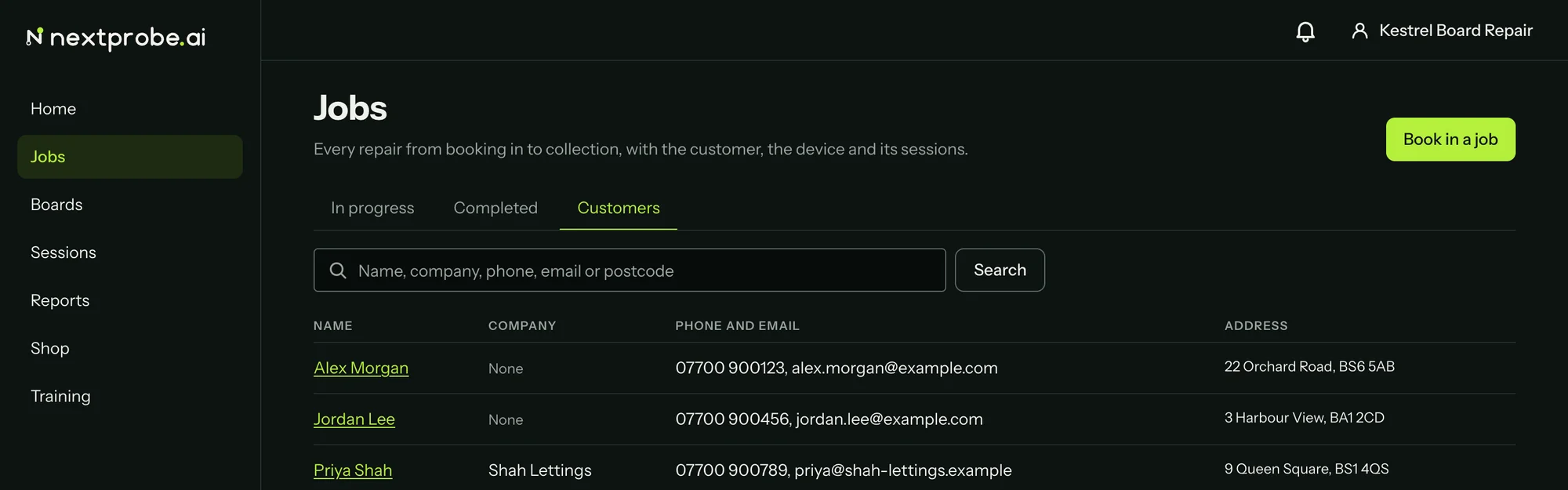
The tabs are In progress, Completed and Customers. Search takes a job reference, a customer name, a device or a serial. The status chips under the search narrow the list to the statuses you press. Book in a job, top right, opens the booking form.
Booking in a job
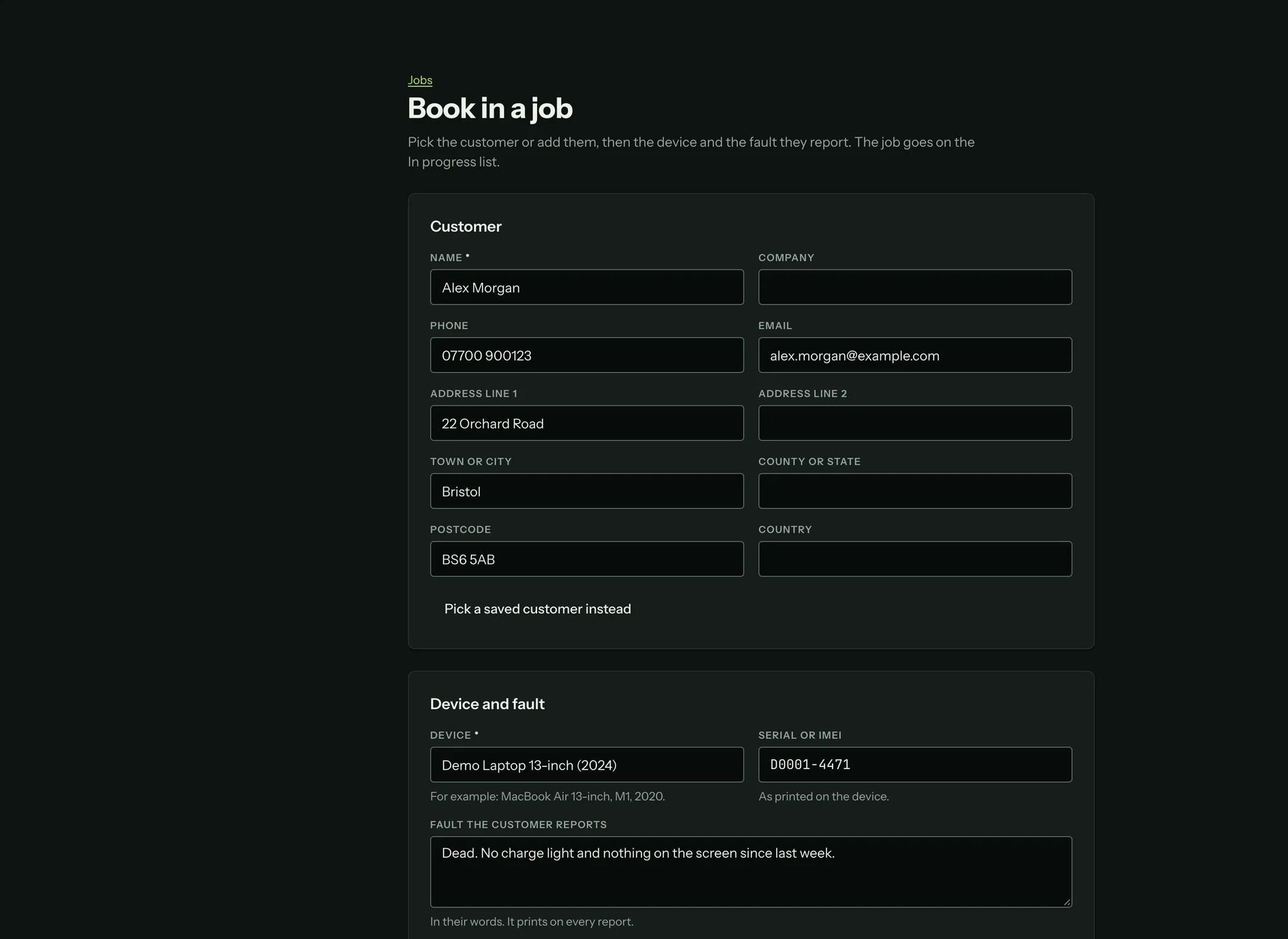
The form runs top to bottom in four parts:
- Customer: Find a customer searches the ones you have saved, by name, company, phone, email or postcode. Add a new customer opens the fields for a new one (Name is needed; company, phone, email and the address are optional).
- Device and fault: the device as you would describe it, the serial or IMEI as printed, and the fault in the customer's own words. That wording prints on every report.
- Job: the job reference, filled in with the next one after your last job (change it to match your own system), and the starting status. References are unique across the workspace; if the one you typed is already taken, the job is saved with the next free suffix (
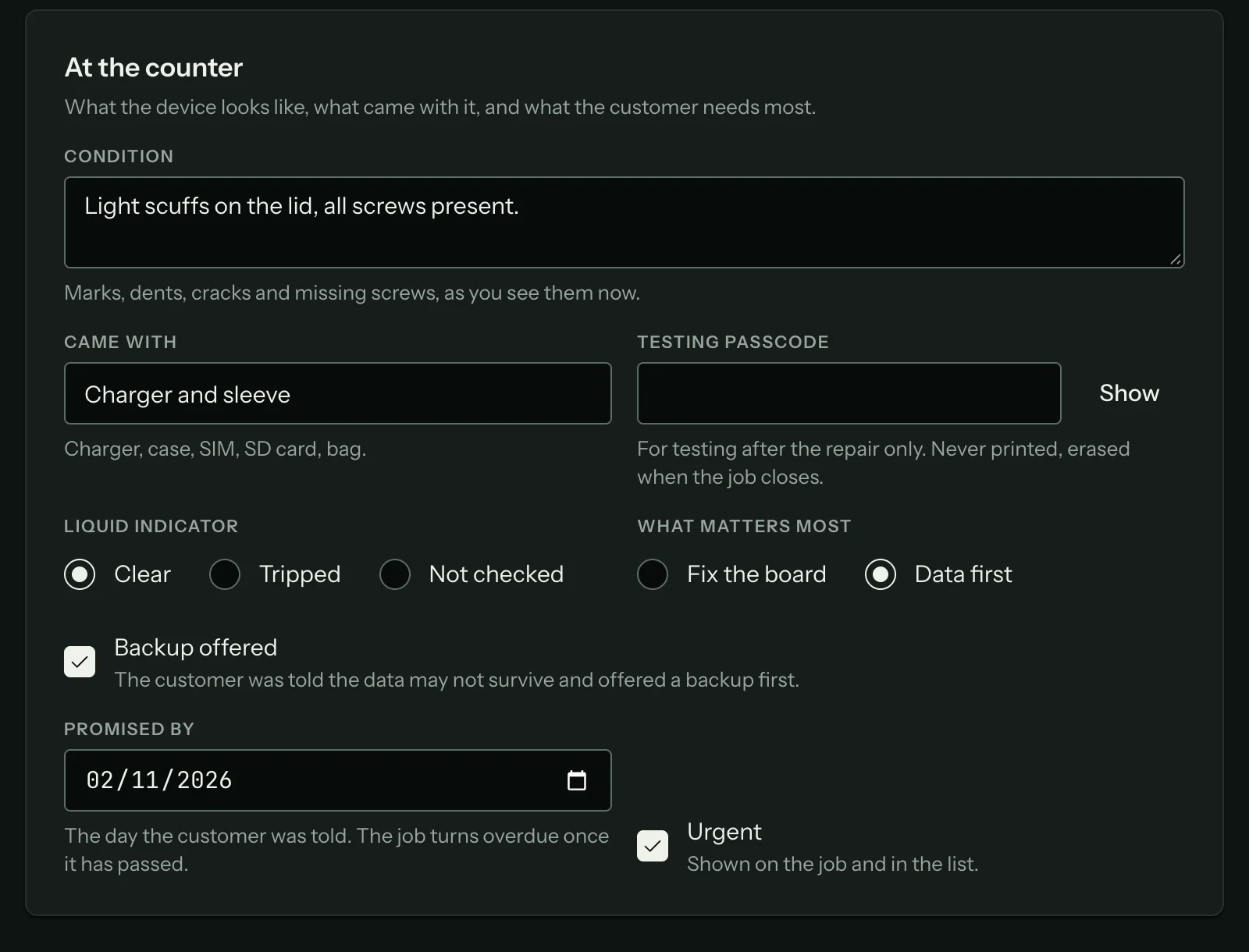
J-0042becomesJ-0042-2) and the page tells you. - At the counter: the condition as you see it now, what came with the device, a testing passcode (hidden until you press Show, never printed, erased when the job closes), the liquid indicator (Clear, Tripped or Not checked), what matters most to the customer (Fix the board or Data first), Backup offered, the date you promised, and Urgent.
Book in the job saves it to the In progress list. If you leave the page half way, the form is kept in this browser and comes back with "Picked up where you left off" until you book the job in or press Clear the form.
A job's page
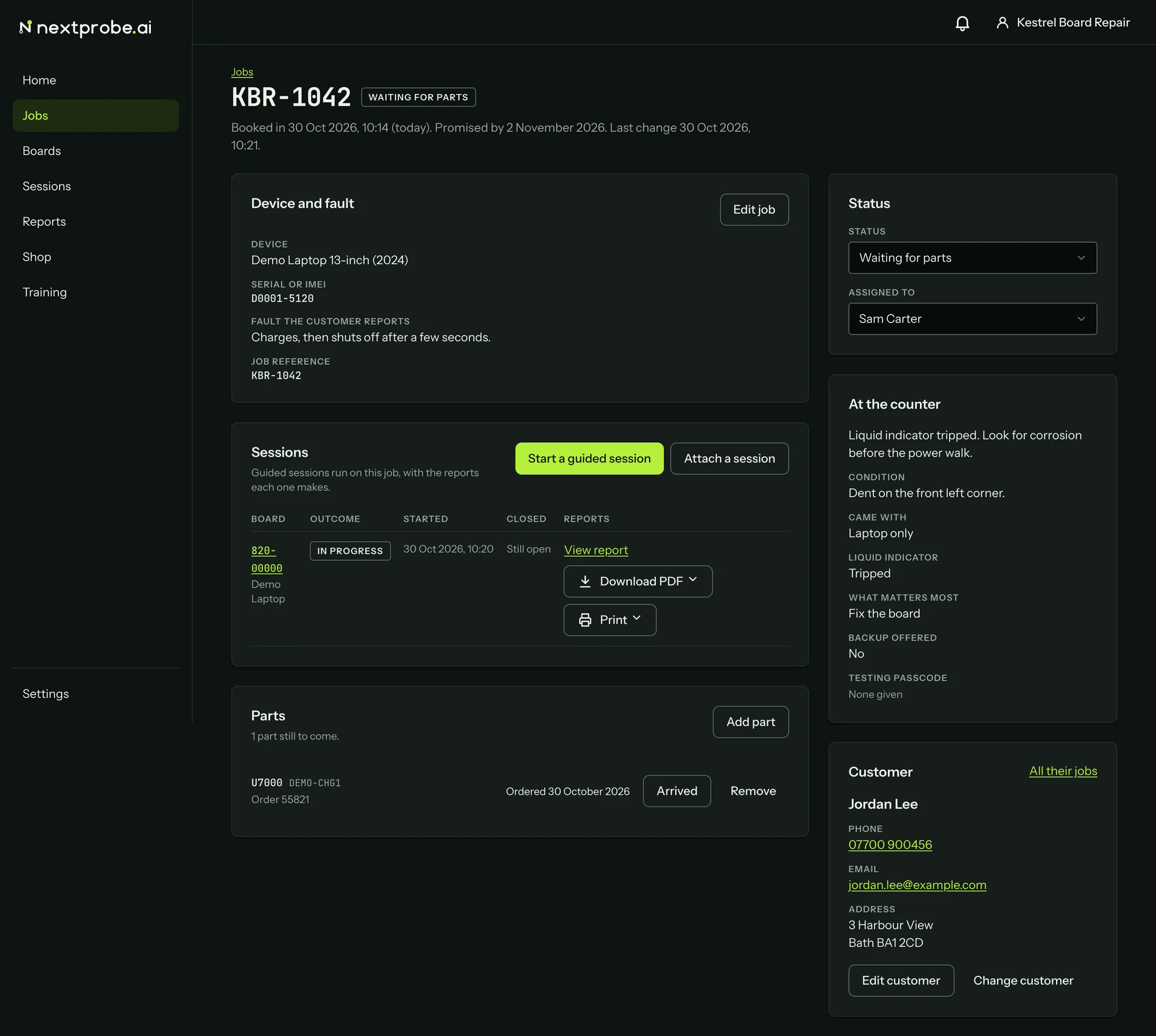
The job page carries everything about one repair:
- Device and fault, with Edit job.
- Sessions run on the job, each with View report, Download PDF and Print. Start a guided session opens Boards with the job attached. Attach a session links a session that was run before the job existed.
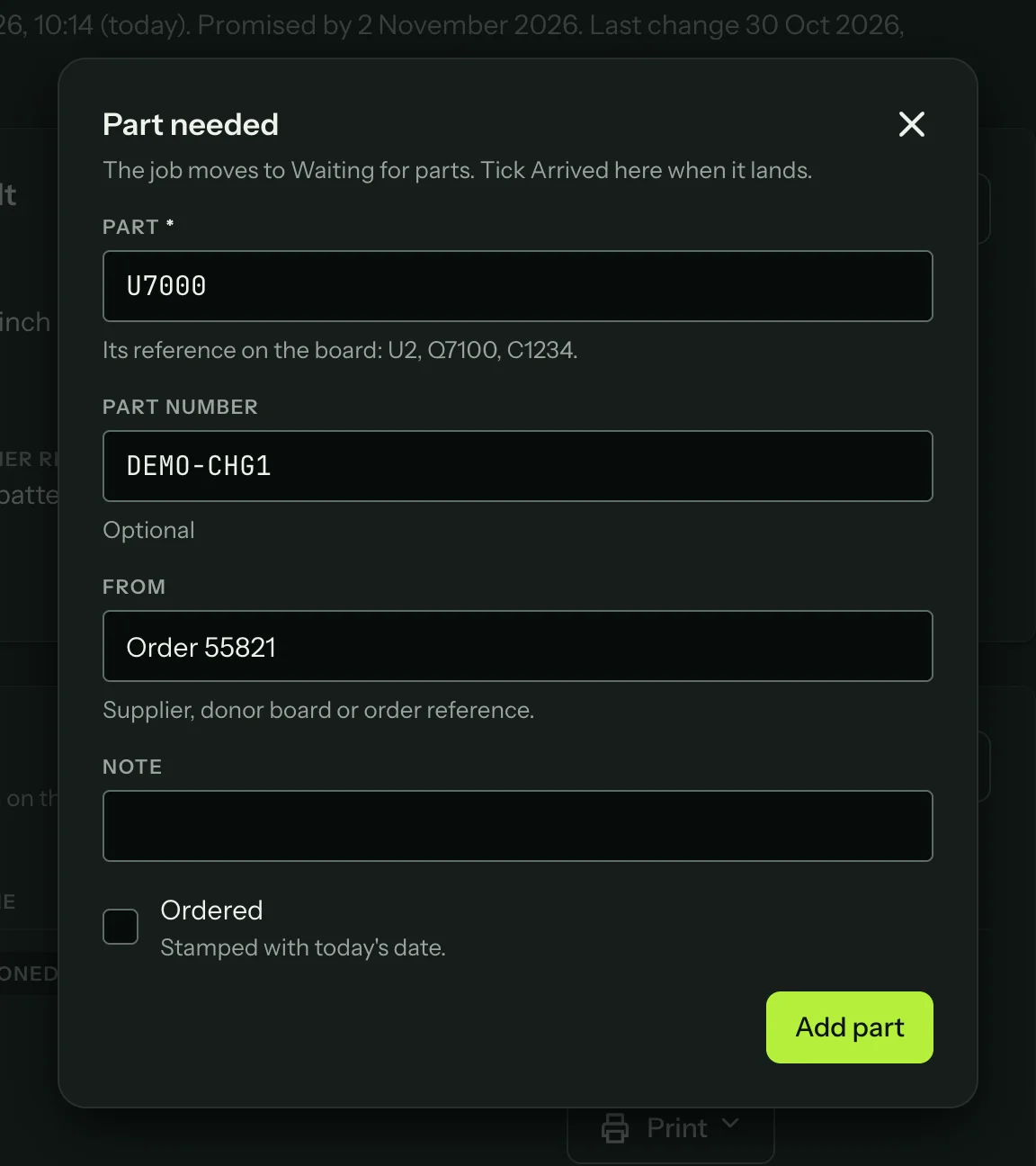
- Parts the job is waiting on. Add part opens "Part needed": the part's reference on the board, the part number, where it is coming from, a note, and Ordered. Adding a part moves the job to Waiting for parts. Press Arrived when it lands, and Resume job puts the job back to Diagnosing once every part is in.
- Status and Assigned to, as two drop-down lists. Choosing Quote declined, Unrepairable or Returned unrepaired asks for the reason and a line in plain words before the job closes.
- At the counter, as booked in. A tripped liquid indicator or Data first puts a line at the top of the card saying how to treat the board.
- The customer, with Edit customer, Change customer and All their jobs.
Customers
The Customers tab lists everyone you have booked in, with company, phone and email, and address. Open a customer to see their details and their jobs, edit them, or book a new job for them. Erase customer removes their personal details at once. The dialog says "This happens at once and cannot be undone." and offers Keep the customer or Erase customer.