

Appearance
The second screen
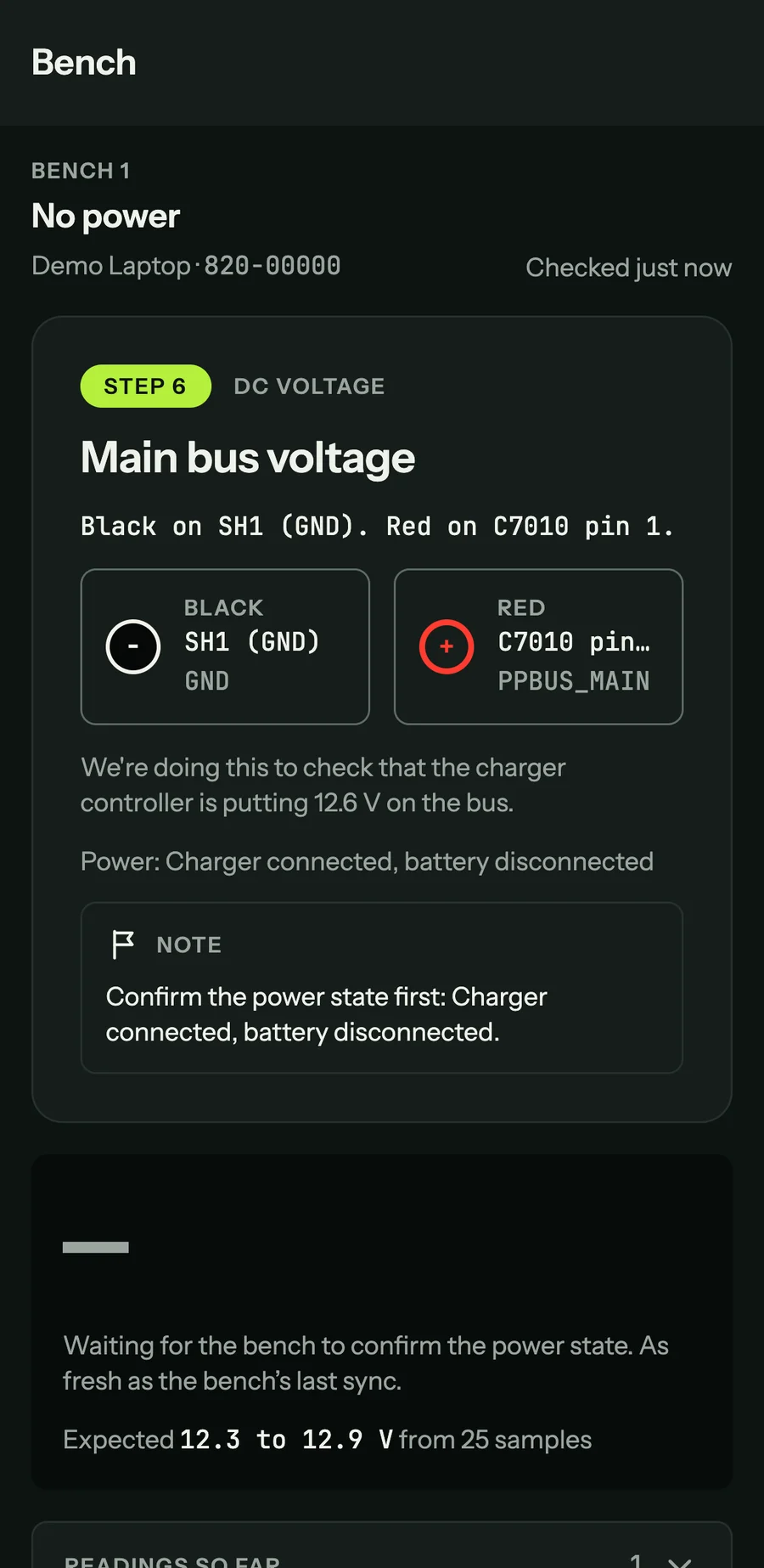
Once paired, the Bench tab follows the session open on that bench and refreshes every couple of seconds. The top line names the bench, the fault tree and the board, with when it last checked.
The step card shows:
- The step number, the meter mode and the step's title, or "Look at the board" or "Do this first" for steps that are not measurements.
- The leads in words ("Black on SH1 (GND). Red on C7010 pin 1."), then a black chip and a red chip with the point and its net.
- Why the step is being done, and the power state the board must be in.
- A note when the bench is waiting for something, such as "Confirm the power state first".
Under the card is the last reading in large type with its verdict, or what the bench is waiting for, and the expected range with how many samples it came from.
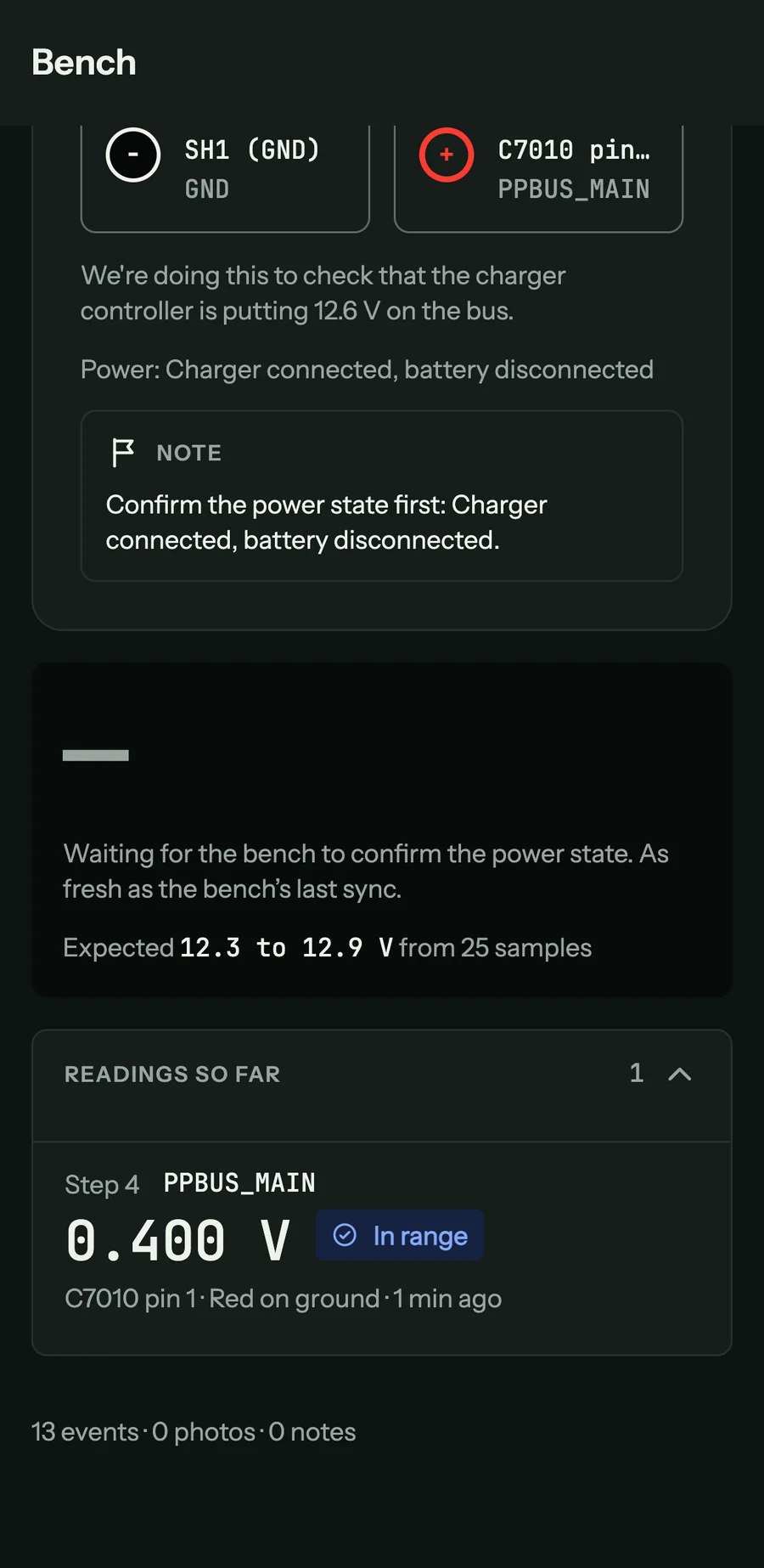
Readings so far, further down, lists each reading on the session with the step, the net, the value, the verdict, the point and the lead position ("Red on ground"), and when it was taken. Below it is a count of the events, photos and notes on the session, and a strip of the session's photos.
When the bench reaches a diagnosis, the phone shows it with Copy part number and Share, so you can paste the part into a supplier's search or send it on. If the session is on a job, Mark job awaiting parts moves the job to Waiting for parts after you confirm with Mark awaiting parts. Undo puts it back.
With no session open on the bench, the tab says "No open session on" and the bench's name. Start one on the bench and it appears within a couple of seconds. The phone keeps its screen on while a session is open; you can turn that off in the phone app's settings (see Profile below).