Appearance
The job page
Open a job from the list to see everything about it.
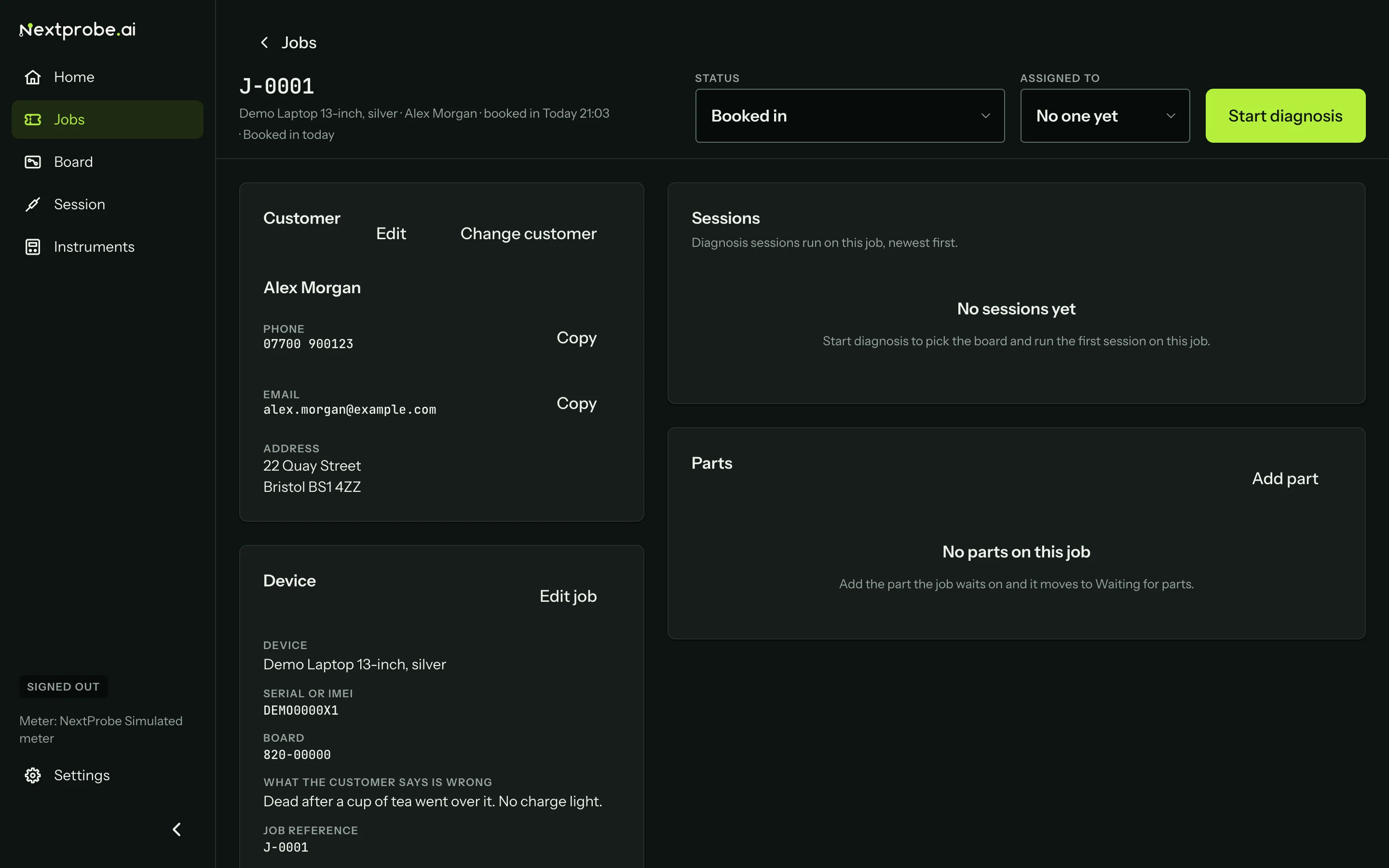
- The header shows the reference, the device, the customer and when it was booked in. Status changes the job's status, Assigned to hands it to a tech (the workspace's members when signed in), and Start diagnosis is the main action.
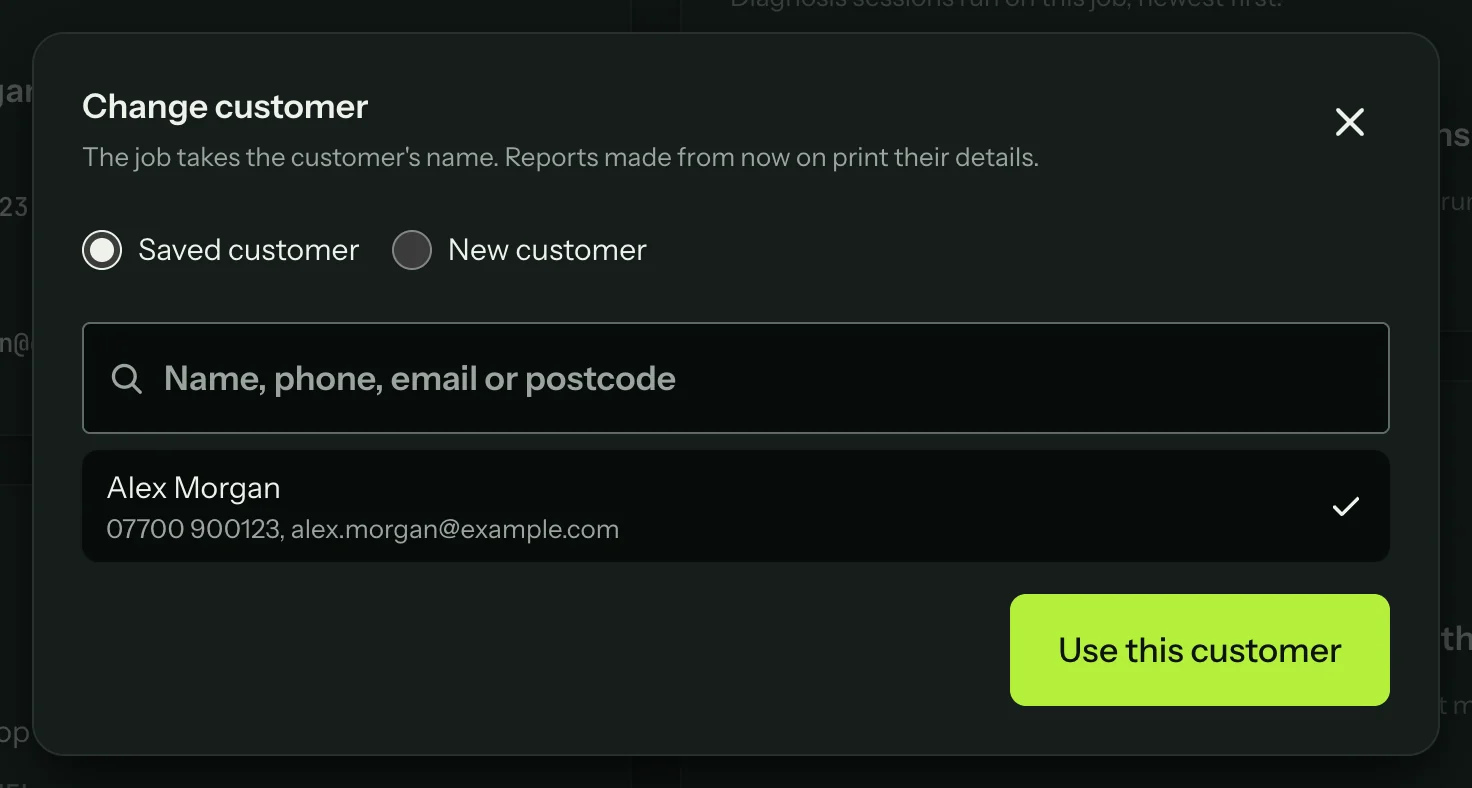
- Customer shows their phone and email, each with Copy, and their address. Edit changes their details. Change customer moves the job to another customer.
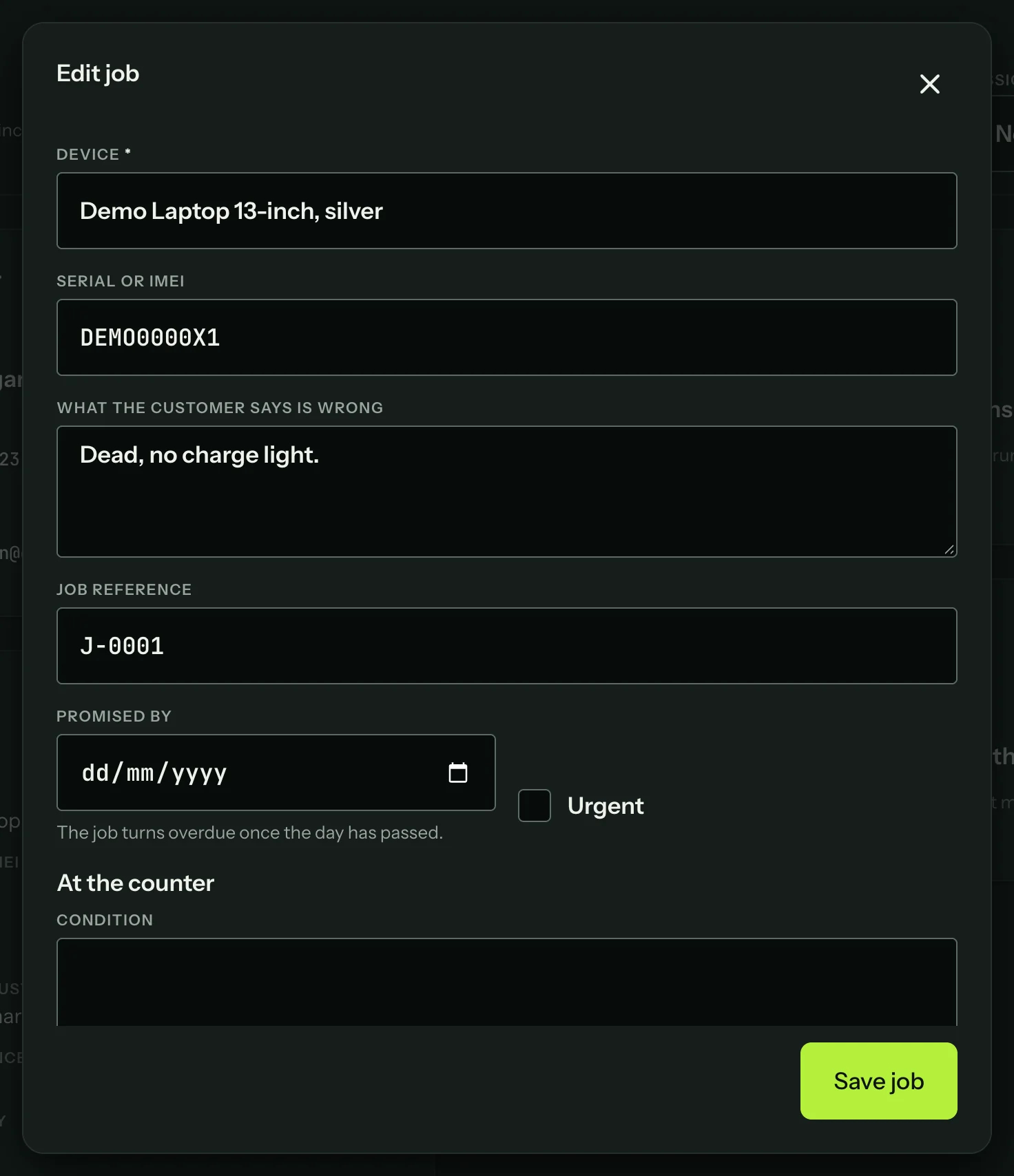
- Device shows the device, serial, board, the fault as reported, the reference and the promised date. Edit job changes these and the counter checklist.
- At the counter shows the checklist. A tripped indicator or Data first puts a line above it saying how to work the board.
- Sessions lists every session run on this job: its outcome, the retest result and times, with Open and a Reports menu to save or print the tech report, customer report or job sheet. Sessions run on other benches are listed too.
- Parts lists the parts the job is waiting on.
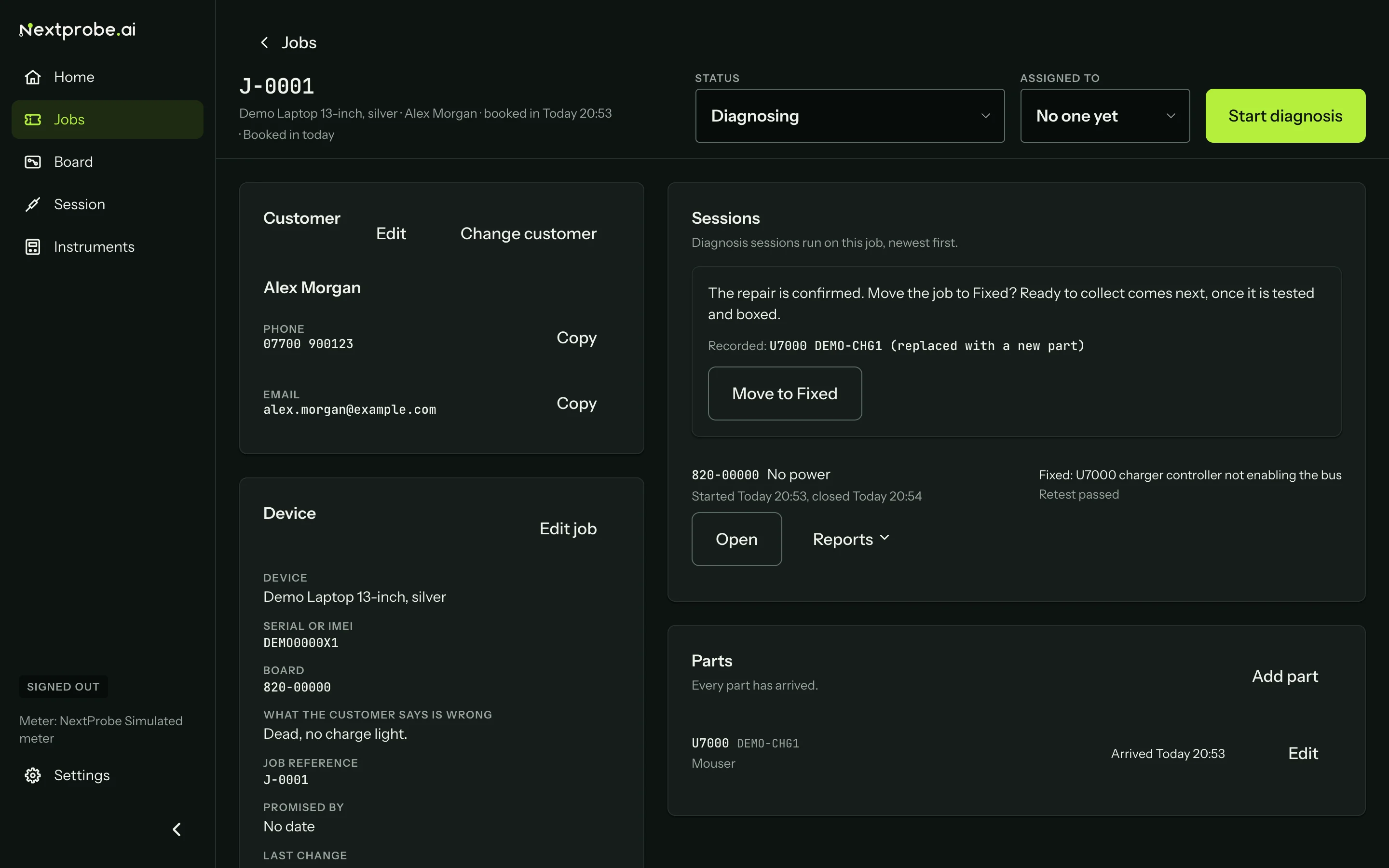
The Reports menu on a session saves or prints any of its three reports, or exports its readings and record.
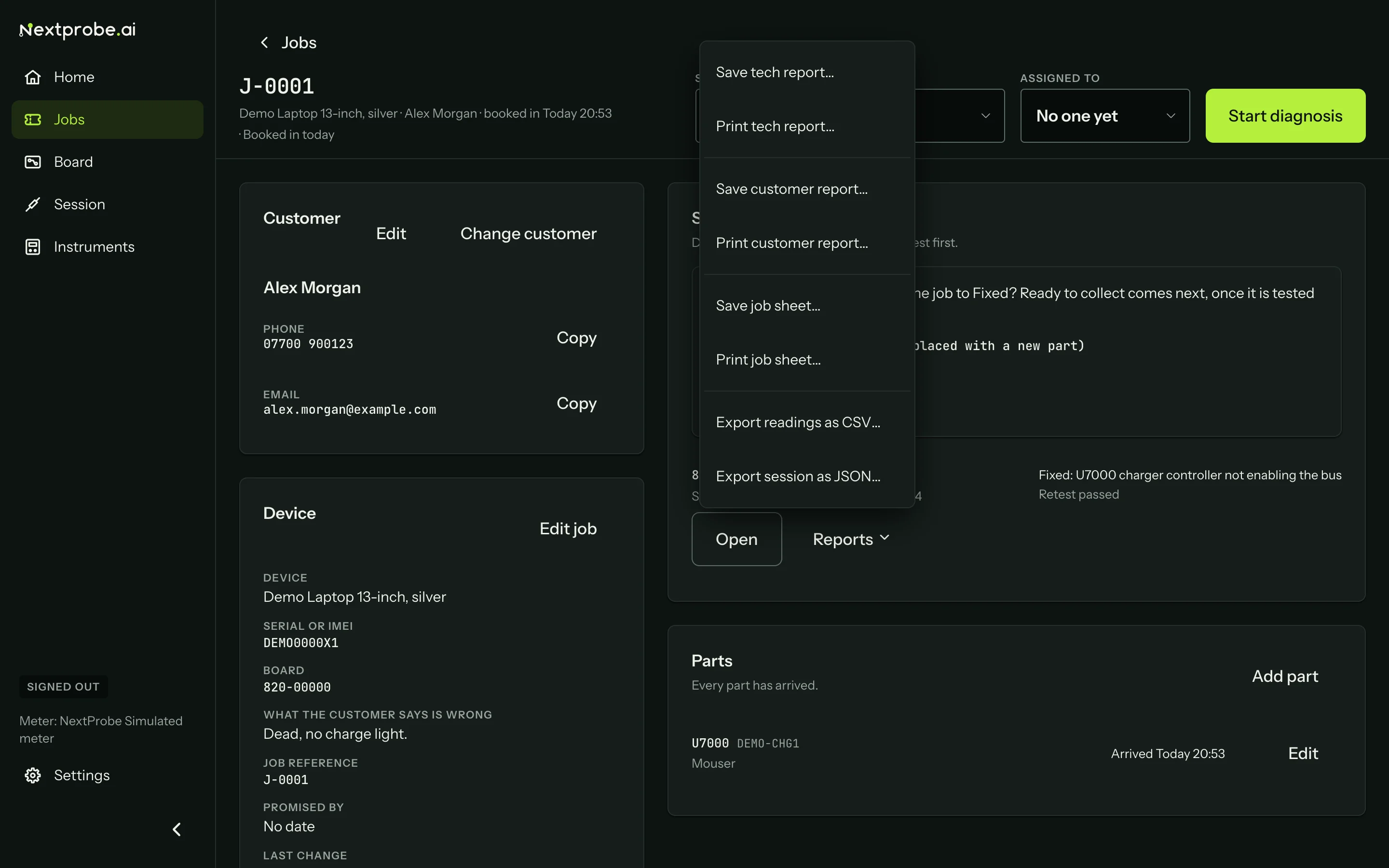
Edit job changes the device, the reference, the promised date and the counter checklist. Change customer moves the job to a saved customer or a new one.
Starting the diagnosis
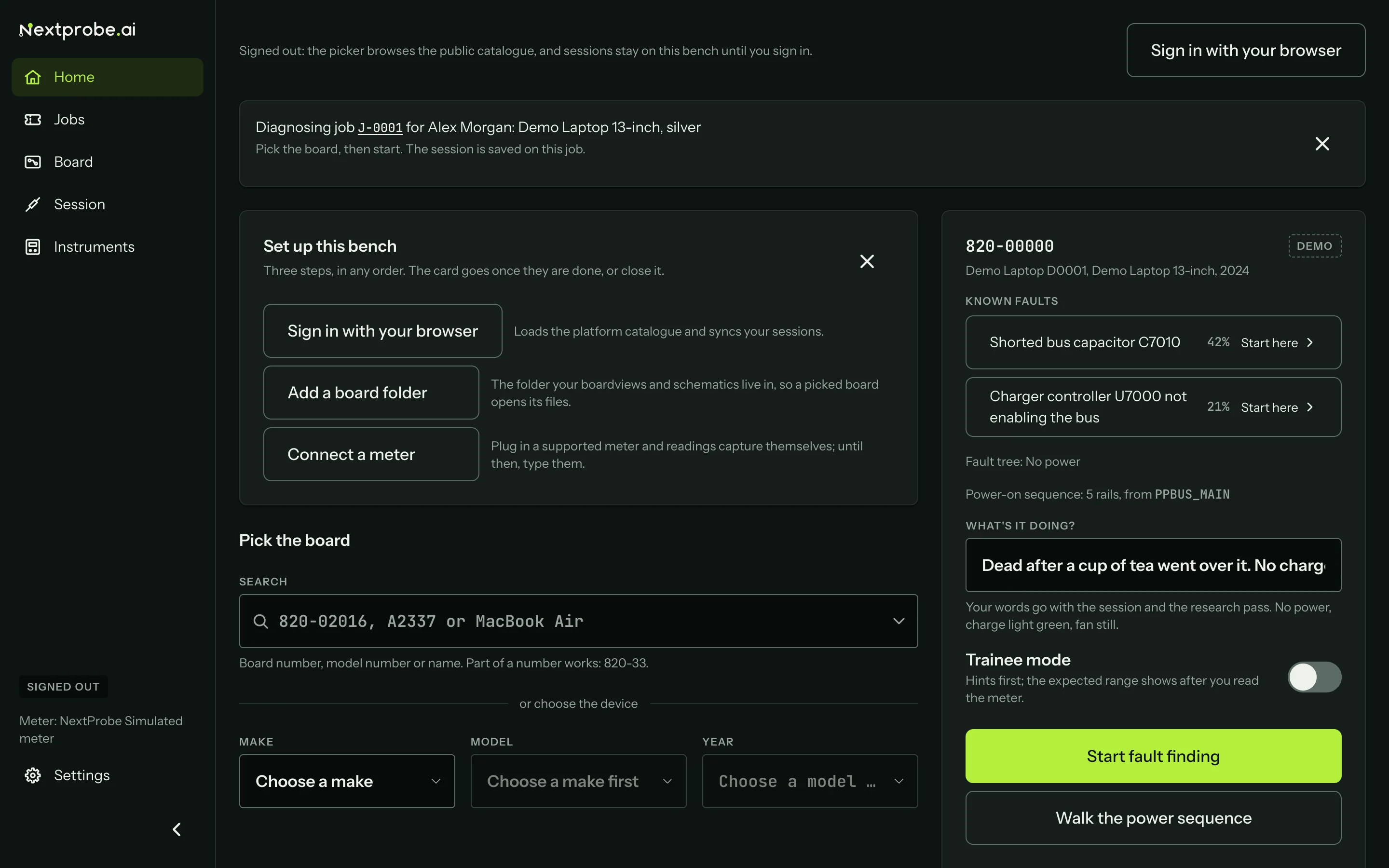
Press Start diagnosis on the job. Home opens with "Diagnosing job" and the customer above the picker, the job's board already picked (also for jobs booked in the web app) and what the customer said as the symptoms. Start fault finding from there, and the session belongs to the job from its first reading. The job moves to Diagnosing.