

Appearance
Find parts and nets
Find takes you to any part or net by name, and the inspector on the right of the board tells you what is known about whatever you select: its pins and nets, the reference figures for a net, your own earlier readings, and the board's profile.
Find
Type a part reference or a net name into Find. Results appear as you type, ranked, with a count. Under the field:
- Substring, Prefix or Whole sets how a name must match.
- Parts and Nets choose what to search.
- A part also matches on its value or part number from the file, such as
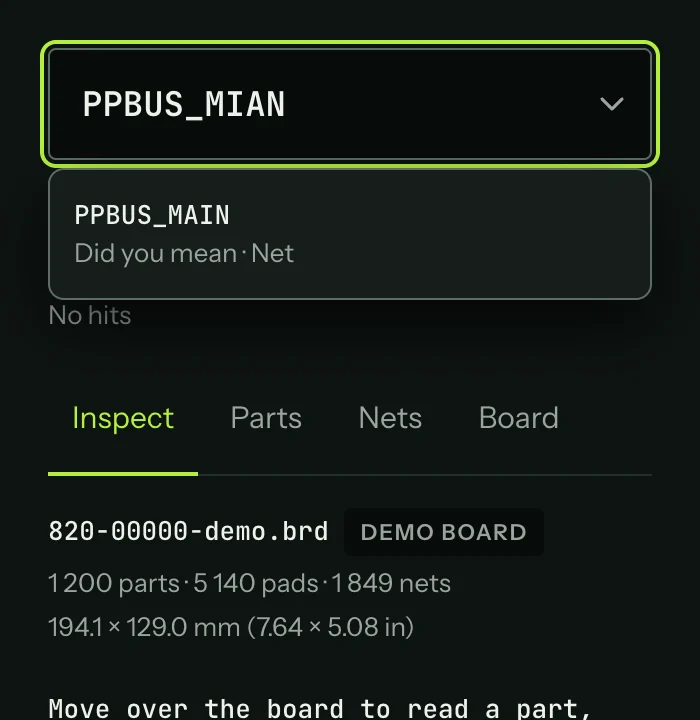
10uF, listed once under its reference. - When nothing matches, Find suggests close names ("did you mean").
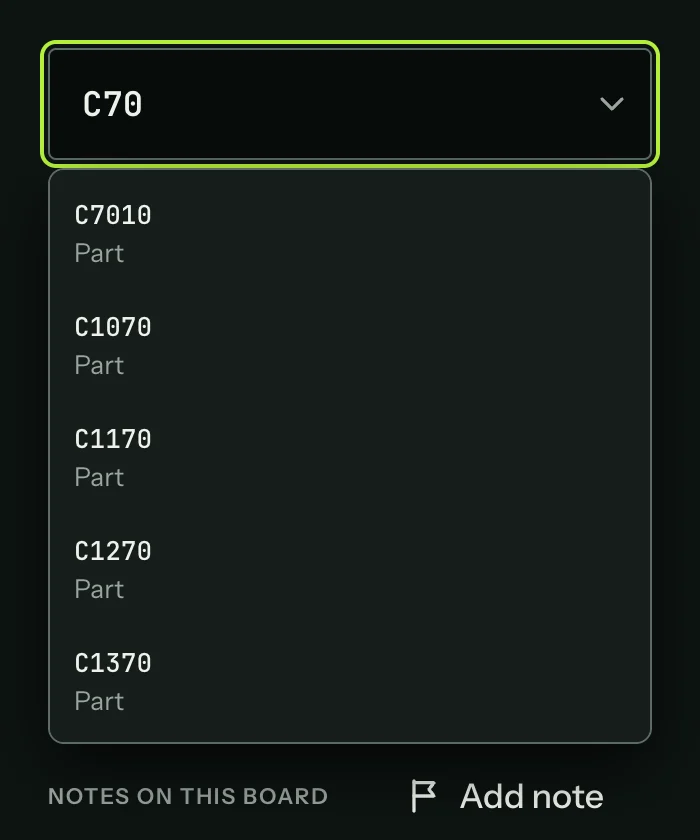
Pick a result, or press Enter on the first, to select it.
When nothing matches, Find offers the names closest to what you typed:
The inspector
The inspector has four tabs: Inspect, Parts, Nets and Board. K opens Parts and L opens Nets.
Inspect
The Inspect tab follows what you select.
The top line describes the file: its name and format, then the number of parts, pads and nets, and the board outline in millimetres and inches.
Select a part and the inspector shows its side and pin count, and for a two-pin part its footprint for ordering, such as 0603, 2.1 × 0.7 mm. If the file records a value or a part number, it is shown too, marked as coming from the file. A part the file marks as not fitted is drawn hollow, with "no stuff" on its label.
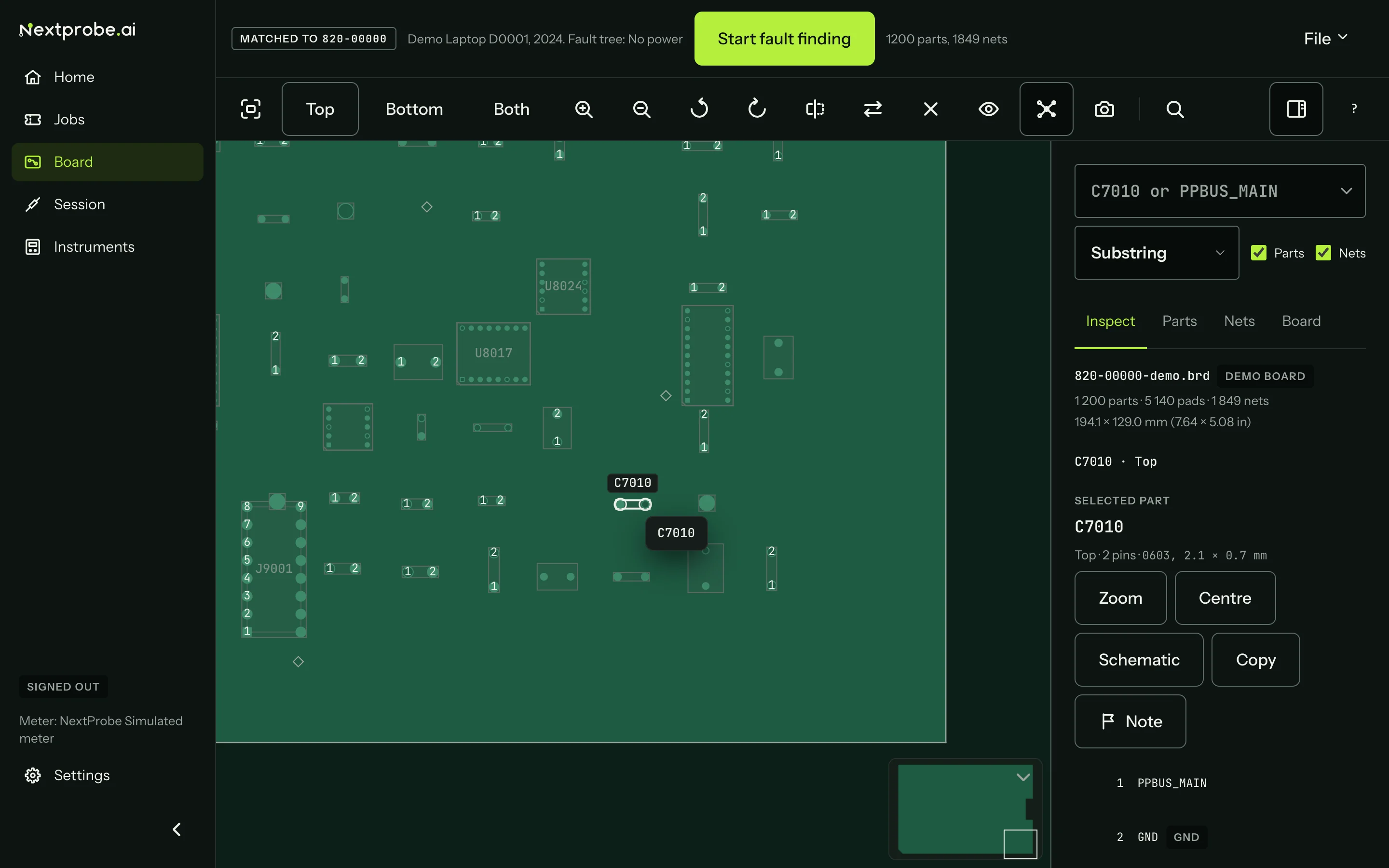
The buttons under a part:
| Button | What it does |
|---|---|
| Zoom | Zooms to the part. |
| Centre | Centres it without changing the zoom. |
| Schematic | Finds the part on the open schematic (Schematics). |
| Copy | Copies the reference. |
| Note | Pins a note to the part. |
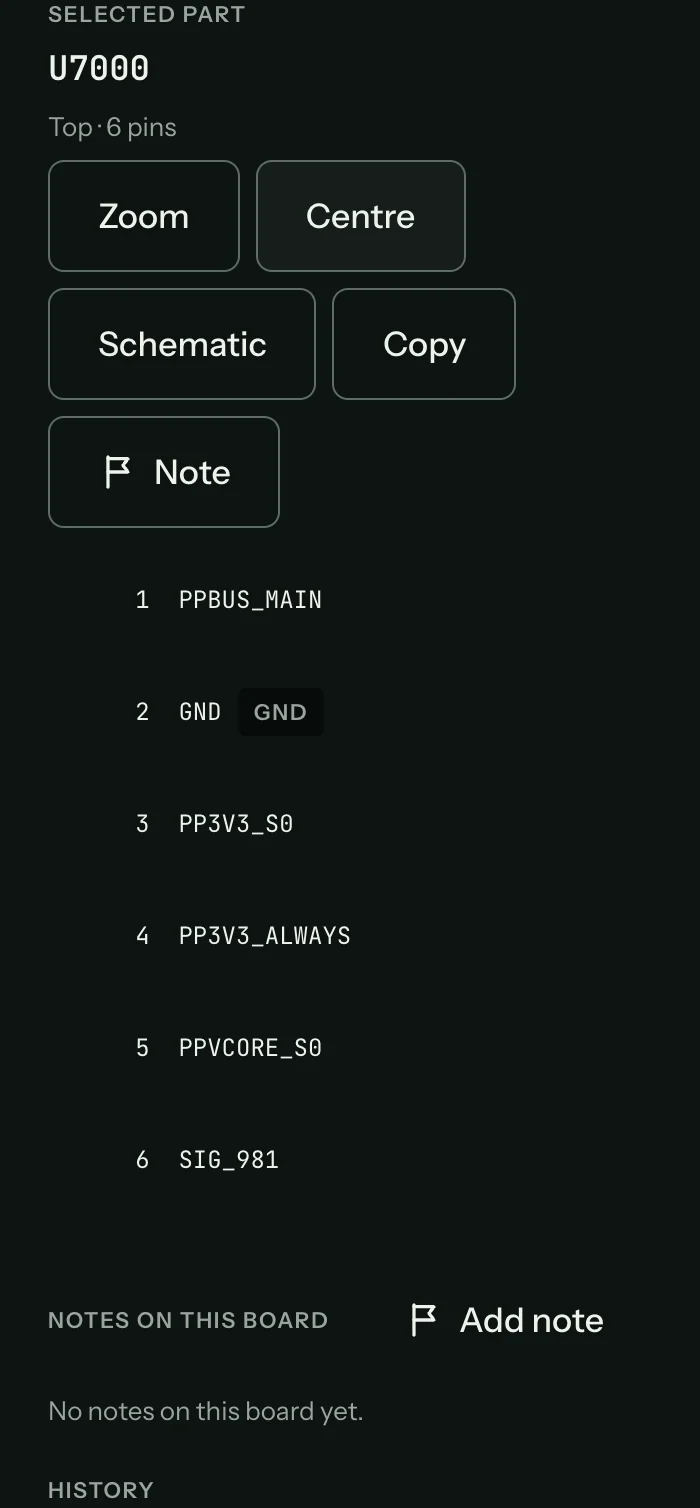
Under the buttons is the pin table: each pin and its net. A pin on the selected net carries a dot. Select a pin row to select that pin and its net.
Select a net, from a pin, from Find or by clicking a pad, and every pad on it lights up while the rest of the board dims.
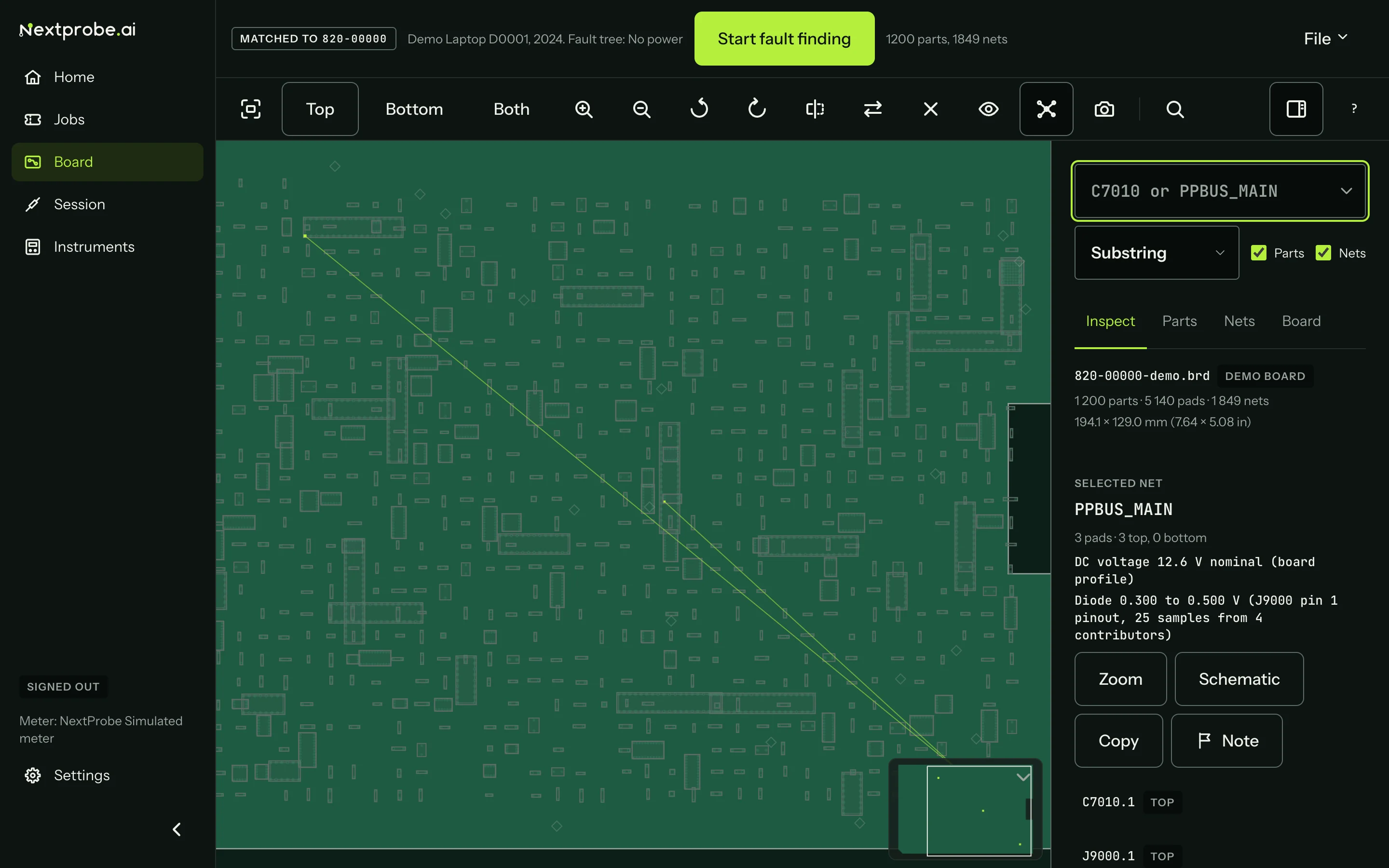
For a net, the inspector shows:
- How many pads it has, and on which sides.
- Reference figures with their source: a measured value from other techs ("Diode 0.300 to 0.500 V, 25 samples from 4 contributors"), the nominal voltage from the board's profile, or a connector pinout. When nothing is known yet it says "No reference for this net yet."
- This session: the last reading you took on the net in the open session.
- Yours: readings taken on this net on this bench in earlier sessions, grouped by mode and power state, and labelled known-good when they came from a board after its fix.
- Readings the file's author wrote on the pads, where the file has them, marked as coming from the file.
- Its test points, its pads grouped by part, and the parts that link it to another net (fuses, inductors, resistors). Select a link to jump to the net on its other side.
None of these figures ever decides a verdict on its own. They are there for you to read.
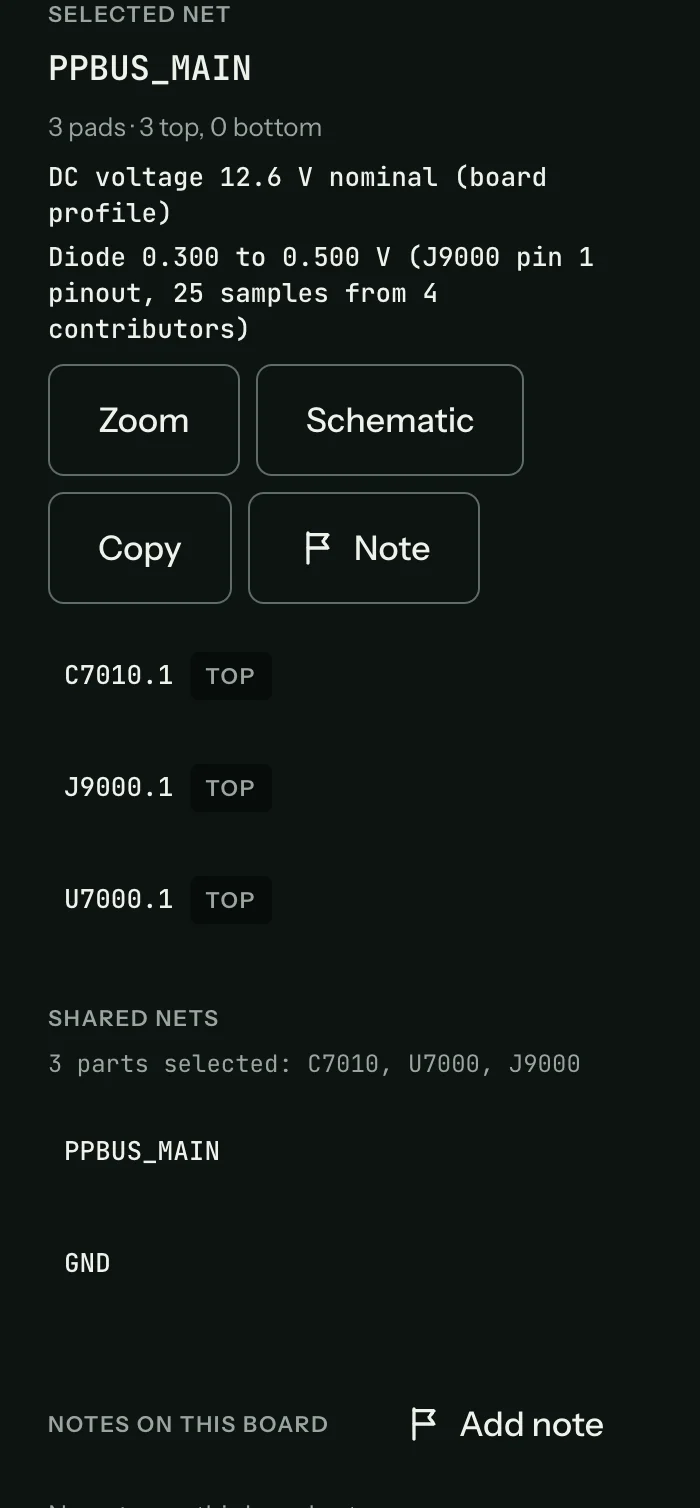
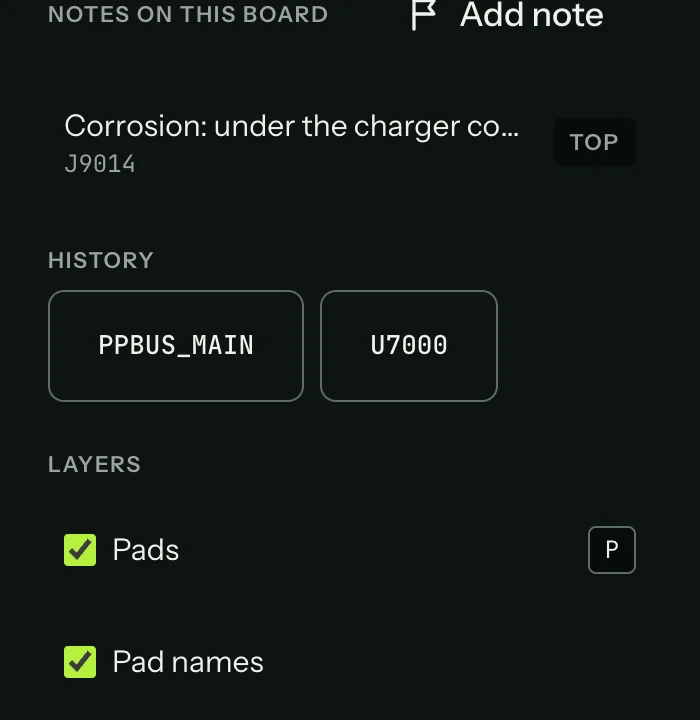
Further down the Inspect tab are the notes pinned to this board, the last ten things you selected (History), and the Layers list.
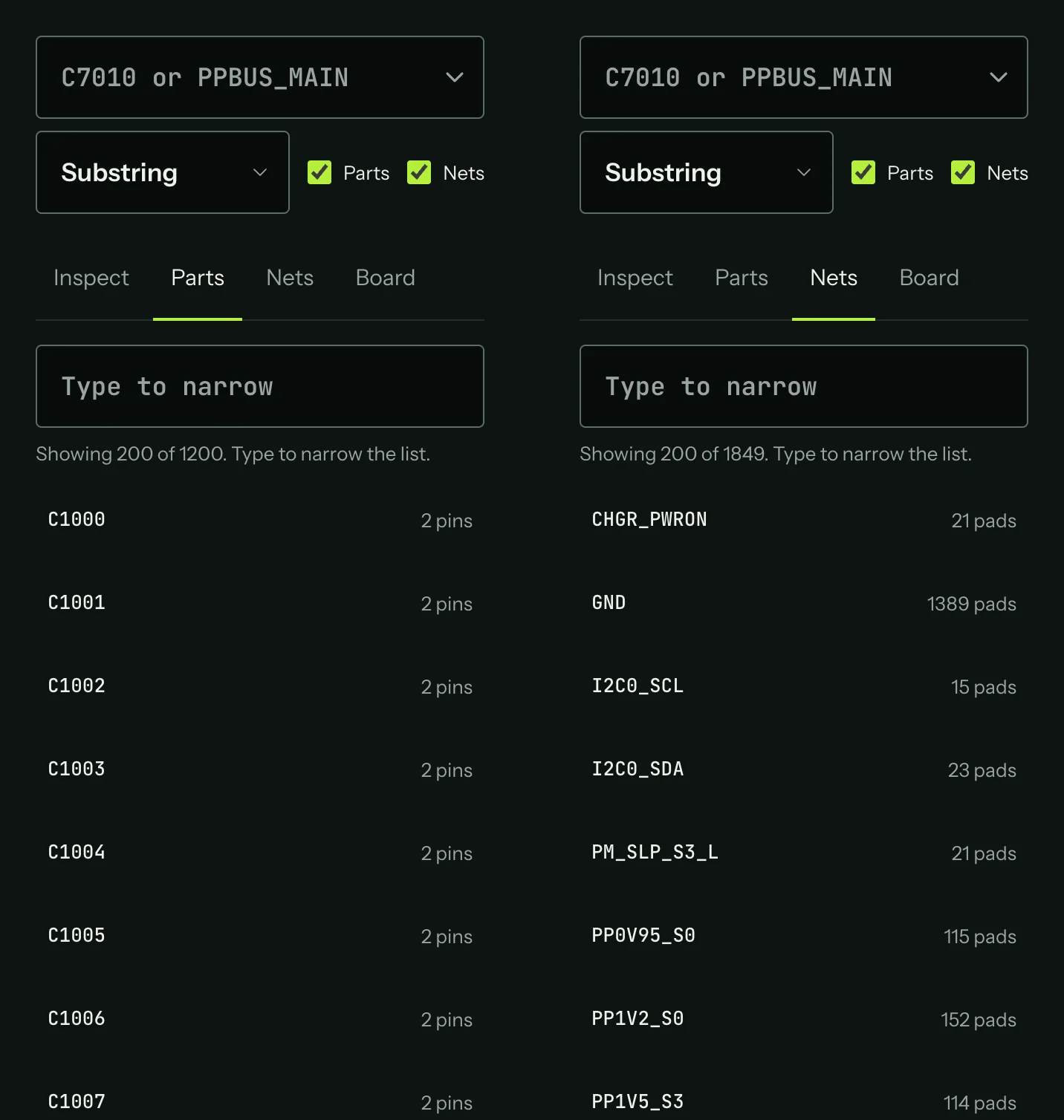
Parts and Nets
Parts lists every part in the file and Nets every net, with pin and pad counts. Type to narrow the list, then pick a row to select it on the board. Lists show the first 200 until you type.
Board
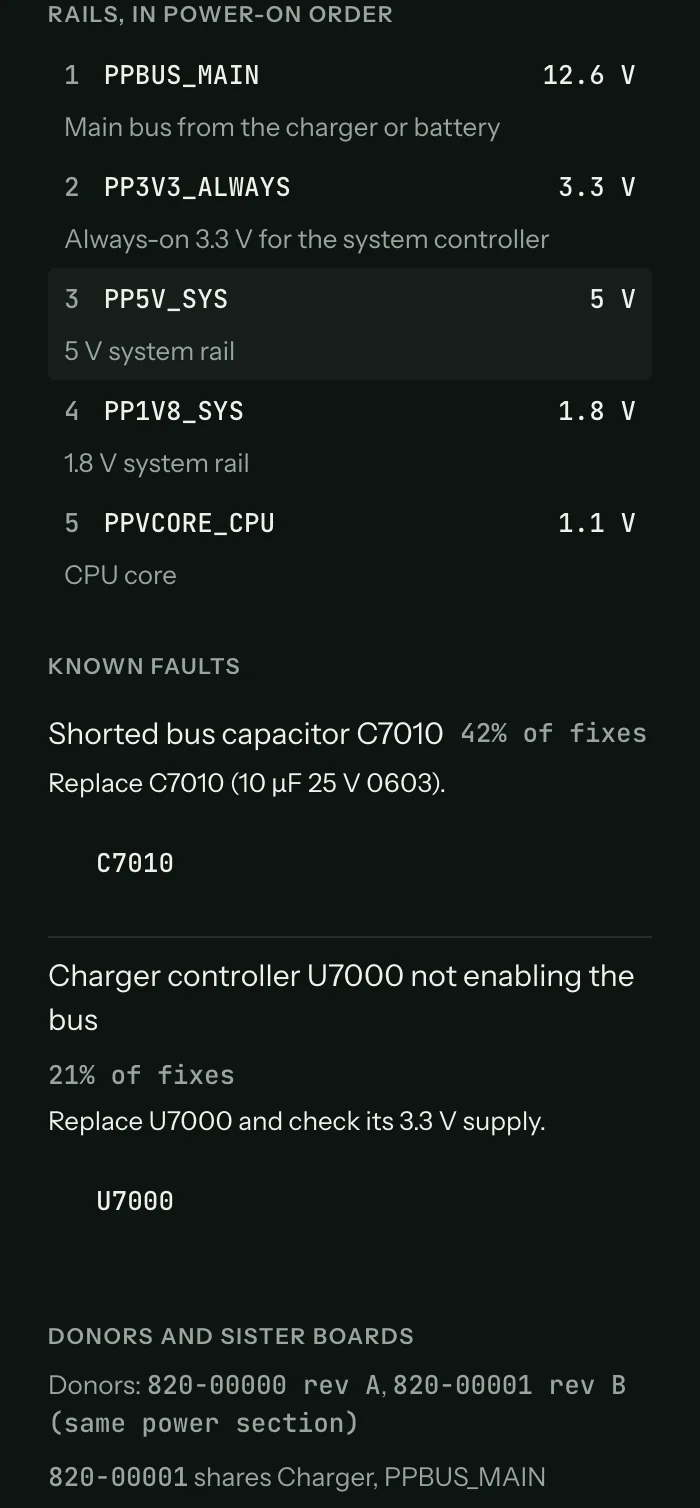
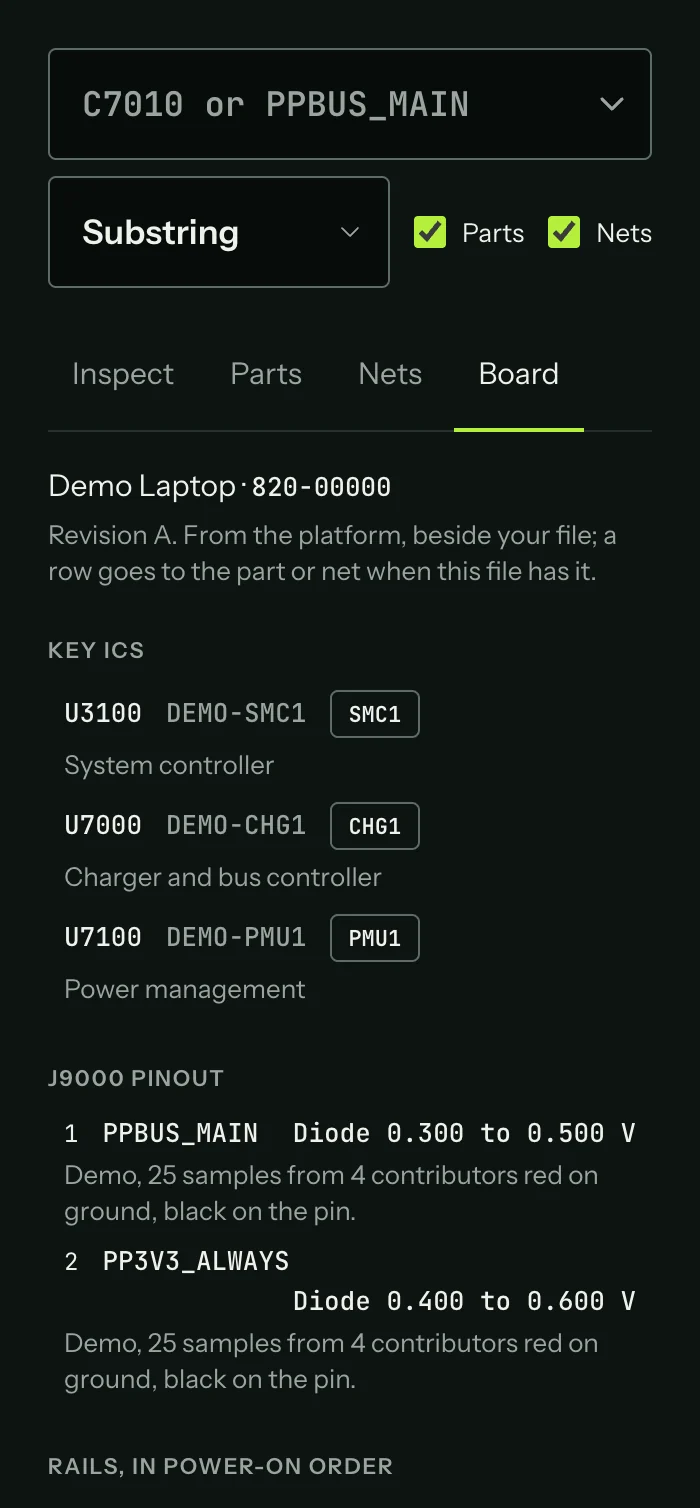
The Board tab shows what NextProbe knows about the board, from the platform, beside your file:
- Key ICs with their part numbers and marking codes. Pick one to zoom to it.
- Connector pinouts with the expected figure on each pin, its source and sample count, and which lead goes where for that figure.
- Rails in power-on order with their nominal voltage. Pick one to select the net.
- Known faults with their fix and parts.
- Donor boards and sister boards that share circuits.
Layers
Tick or untick what the board shows: Pads (P toggles it), Pad names, Net names, Part names, Net web, Test points, Notes, Hidden parts and Minimap. Two more ticks change how selection behaves:
- Zoom to the net on select frames the whole net when you select it.
- Select all parts on net selects every part on a net you click. It never applies to ground, which would select half the board.
The bench remembers your layers, the Find mode and the inspector's width.