

Appearance
Open your board files
NextProbe draws the board from your own boardview. Open it in any of these ways:
- Open board file on Home or on the board card.
- File → Open Board File (⌘O on a Mac, Ctrl+O on Windows).
- Drag the file onto the NextProbe window.
- On a Mac, Open With, NextProbe, from Finder.
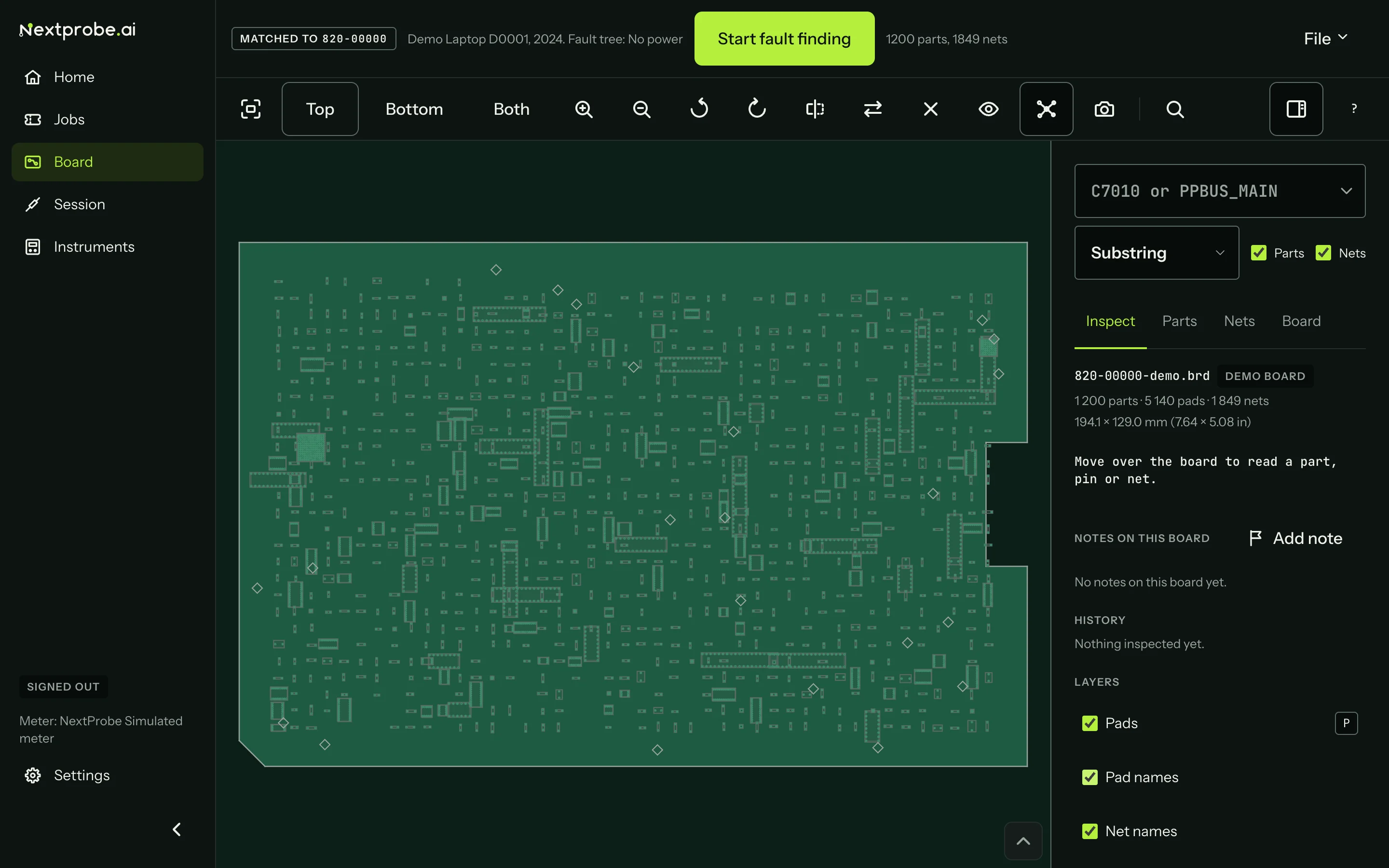
The file opens on the Board screen. The header says what the file was matched to: "Matched to 820-00000" with the device and the fault tree, and Start fault finding beside it.
Your files stay on your computer
NextProbe reads your boardview on the bench and never uploads it. Only the part references, net names and readings you take go to your workspace.
The bench matches a file by its content first, so a file it has seen before is recognised even after you rename it. Otherwise it reads the board number from the file and looks it up. Once matched, the file is remembered for that board and opens by itself the next time you pick the board.
Board file formats
| Format | Files |
|---|---|
| BRD and BRD2 | .brd, .brd2 (the common text boardview formats; not Allegro's own .brd, see below) |
| BDV | .bdv |
| BVR | .bvr, .bvr3 |
| BV | .bv |
| FZ | .fz, with your key (Set up the bench) |
| CAD, GenCAD | .cad, .gencad |
| ASC | .asc with its companion files |
| XZZ | .pcb |
| CST | .cst |
The bench reads the format from the file's contents, so a BVR saved as .brd still opens. A board file can be up to 64 MB.
Some files can't be opened, and the bench says why: an Allegro or Altium design file (export it to a boardview format first), an encrypted FZ file without its key, or a BV file of a kind NextProbe cannot read. Your file stays on your computer either way.
When a file doesn't match a board
Some boardviews carry only an internal code, such as J680 or K31, with no board number in the name or the file, so the bench can't tell which board they are. Boards NextProbe doesn't know yet can't match either. The header then says "Not matched to a board", with a board search beside it:

- Search for the board by board number, model number or name, and pick it. The bench matches the file at once and remembers it, so the next open needs no asking.
- If you already picked the right board on Home, a Use for button with its board number (Use for
820-00000) matches the file to it in one press. - If NextProbe doesn't know the board at all, press Add this board. Confirm the board number and the device details, and the board goes to the NextProbe team for review. Only the number and the device details are sent; the file stays on your computer. Signed out, the button reads Sign in to add this board.
When a remembered file has moved
If you moved or deleted a file the bench remembered, the Board screen says the file has moved and offers Find it. Choose the file in its new place. If its contents are the same, the bench remembers the new location for that board.
Several files for one board
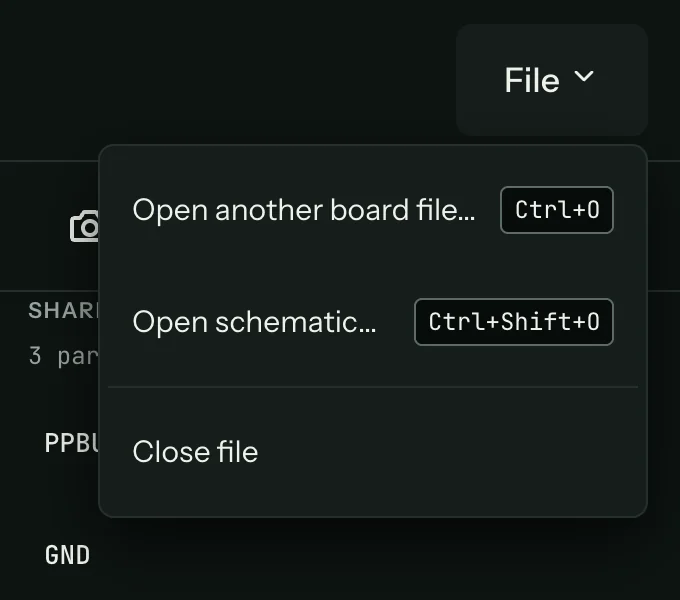
When your library holds more than one boardview for a board (a BRD beside an FZ, or two revisions), the File menu on the Board screen lists each as Switch to, with its folder. Close file in the same menu closes the board.
Something not working?
See Troubleshooting: board files, or get help.