

Appearance
Calibrate a meter
Diode readings differ between meters by tens of millivolts, which matters when ranges are tight. Calibration measures the NextProbe calibration card, which ships with the bench kit, once per meter. The bench then corrects that meter's diode readings so the expected ranges on screen match what your meter shows. Other modes are not changed.
Calibrate is on a meter's card on the Instruments screen while the meter is connected and streaming readings. It is greyed out during a session, because calibration puts the meter into diode mode: end the session first. A meter you type readings for has no Calibrate.
- Connect the meter and press Calibrate on its card.
- The meter goes into diode mode. Put red on the card's common pad and black on Point A, and hold still until the bar fills.
- Lift the leads, then do the same on Point B.
- The bench shows the correction it worked out from the two points.
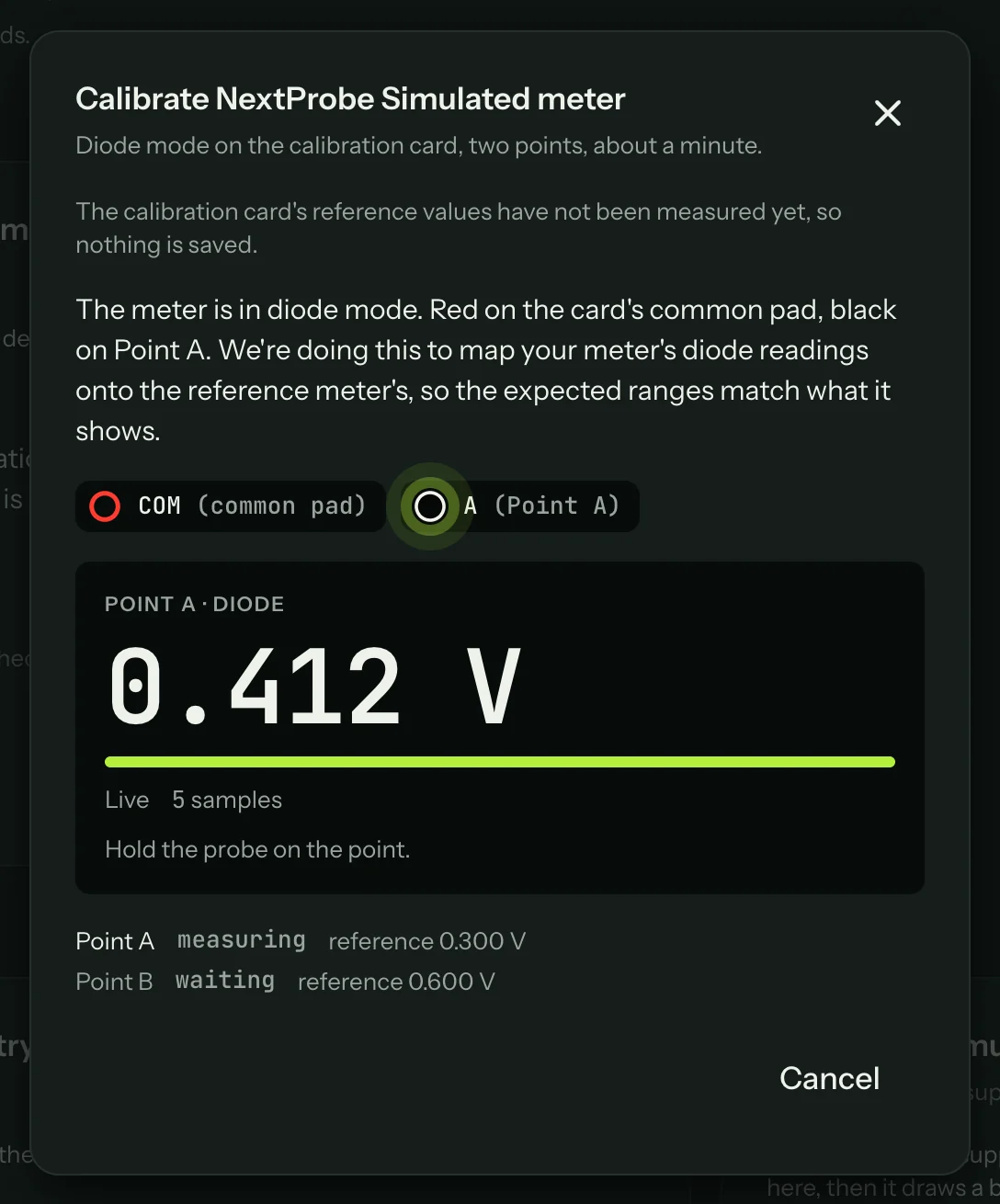
Save calibration is not available yet
The card's reference values are still to be measured on the kit's reference meter, so the bench saves nothing for now. The dialog says so: "The calibration card's reference values have not been measured yet, so nothing is saved." Save calibration stays greyed out, and diode readings are used as the meter gives them. Save turns on in the update that ships the measured values; after that a calibration is saved with the meter's serial number and the date, applies only to that meter, and its card shows Recalibrate and Clear calibration.
Until then, if a meter reads tens of millivolts off on every diode step, compare against a known-good board (Compare with a good board).
Something not working?
See Troubleshooting: meters, or get help.