

Appearance
Make and print a report
Press Make report…. The sheet starts on the tech report, the shop's full record; choose the customer report or the job sheet if that is the one you want.
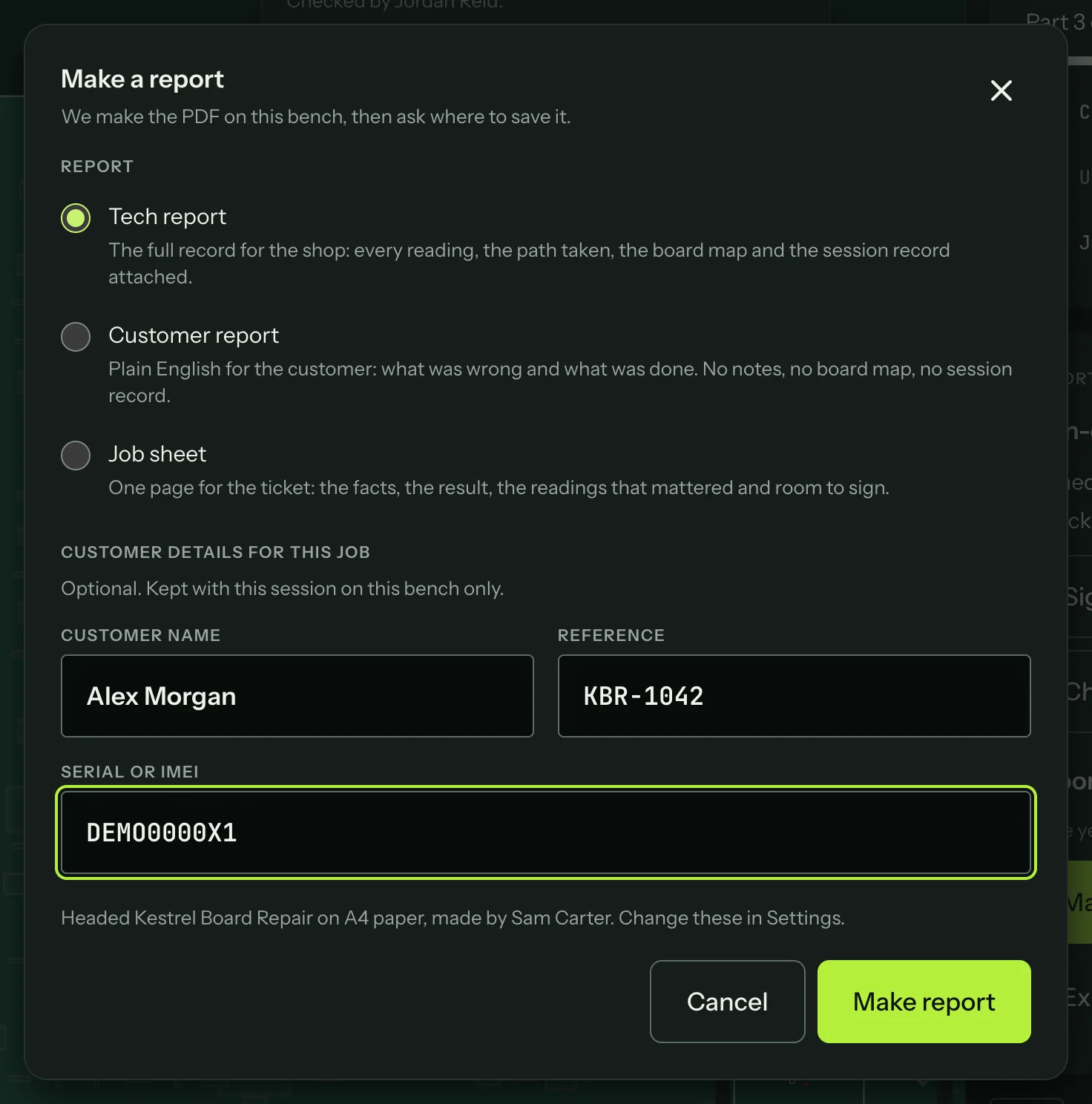
Under the choice, Customer details for this job takes the customer's name, your reference and the serial number or IMEI. These are optional and stay with this session on this bench. A session started from a job fills them in from the job.
The customer report is headed by your shop. If the bench doesn't have your shop name yet, the sheet has a Shop name field, which the customer report needs before it can be made. It keeps the name in Settings → Reports for next time. On the tech report and the job sheet the field is optional: without it the report is headed by your name or the bench name.
Press Make report. The bench makes the PDF and asks where to save it. The report is listed under Reports made, with its number and revision.
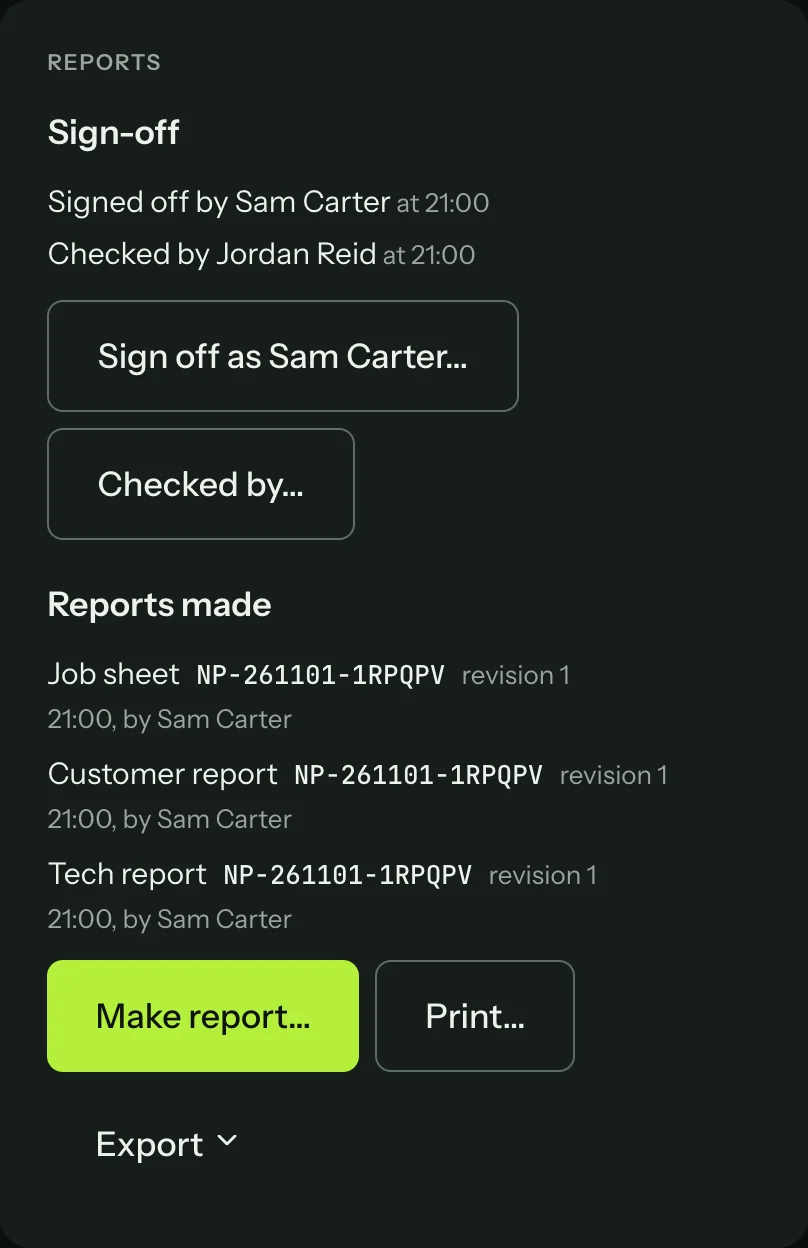
Print… opens the same sheet with Open to print in place of Make report. That opens the PDF in your computer's PDF app (Preview on a Mac) instead of saving it, so you print it from there. ⌘P on a Mac, or Ctrl+P on Windows, prints what is on screen: on the session screen it opens this print sheet, and on a job it offers that job's reports. On a Mac, File → Print Tech Report…, File → Print Job Sheet… and File → Print Customer Report… go straight to each report while a session is open.
Reports from a job
A job lists the sessions run on it, each with a Reports menu to save or print any of the three reports (The job page).
Something not working?
See Troubleshooting: reports, or get help.