

Appearance
Notes, photos and the right-click menu
Right-click any part or pad for the things you can do with it. Notes and photos you pin to the board stay on the session's record and its reports.
The right-click menu
Right-click a part or pad for its menu. Only the rows that apply appear.
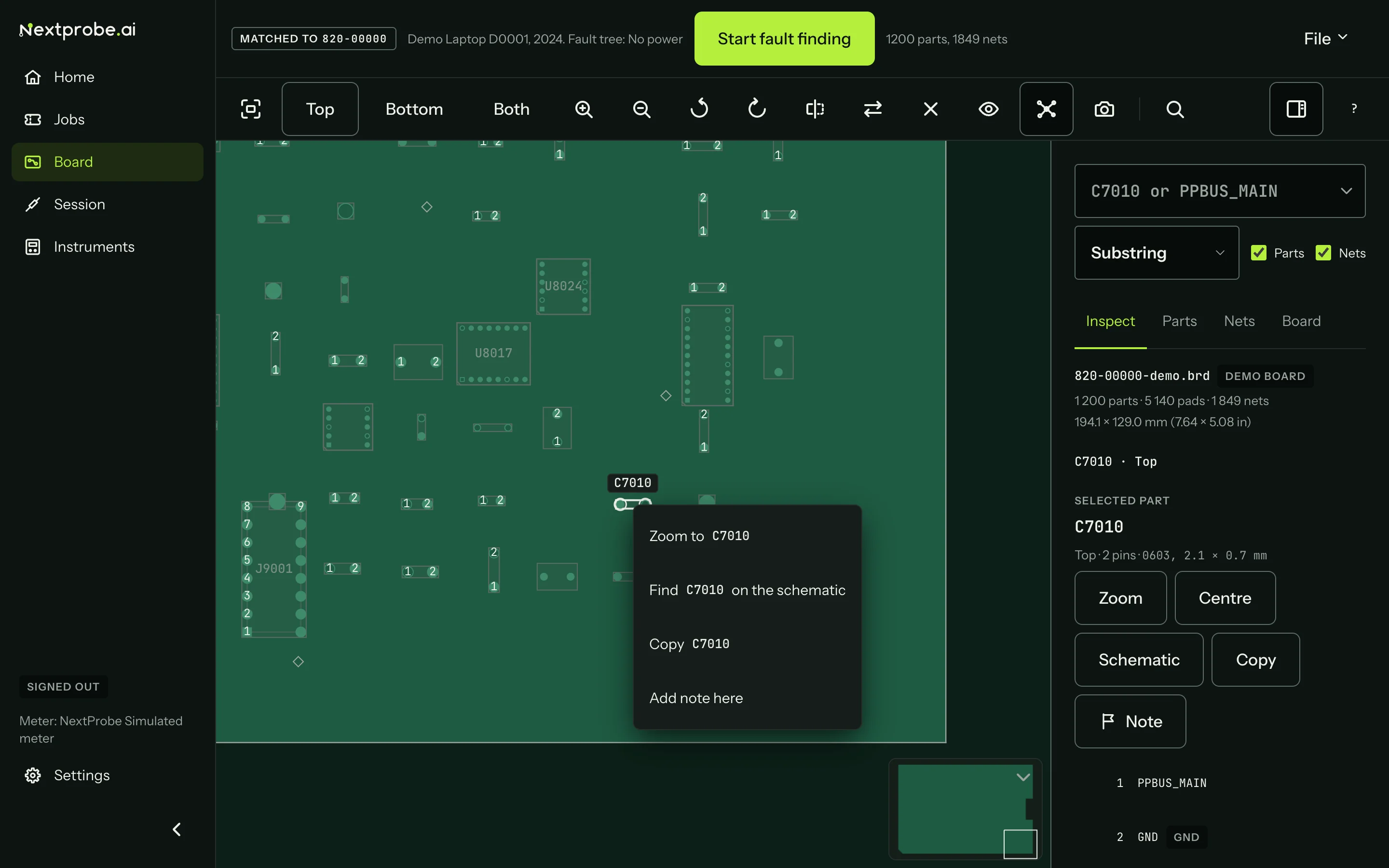
| Row | What it does |
|---|---|
| Measure here | During a session, measures this point as an extra step (Measure here). |
| Zoom to | Zooms to the part. |
| Select net | Selects the pad's net. |
| Find on the schematic | Jumps the schematic to the part or the net. |
| Copy | Copies the reference, or the part, pin and net together. |
| Add note here | Pins a note to the spot. |
| Attach photo here | Pins a photo to the spot. |
| Use this pad for | Appears when a step names a part your file doesn't have (see below). |
Notes and photos on the board
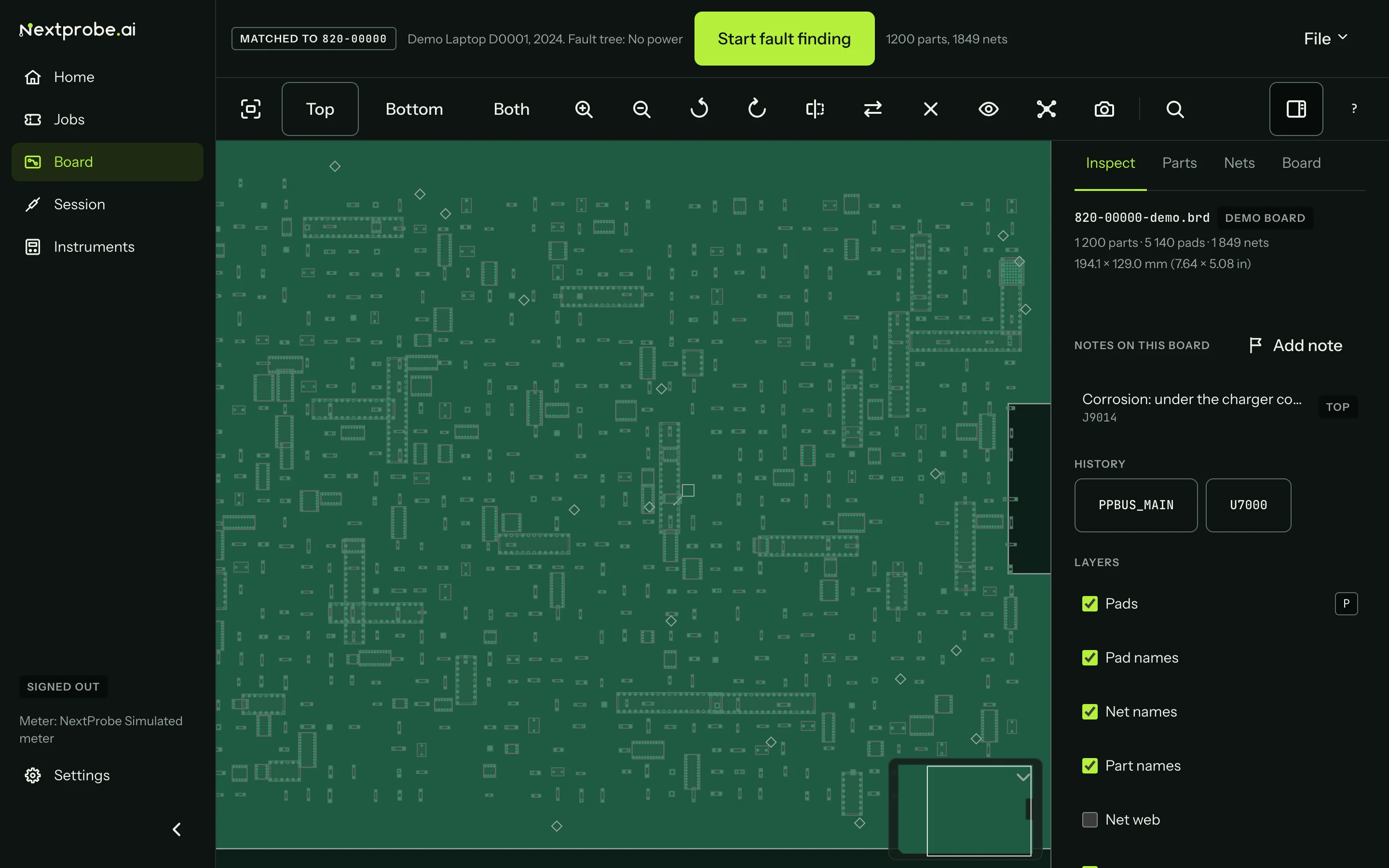
Pin a note or a photo to the spot you right-clicked, or to the selected part with its Note button. Notes show as a small flag on the board and are listed in the inspector.
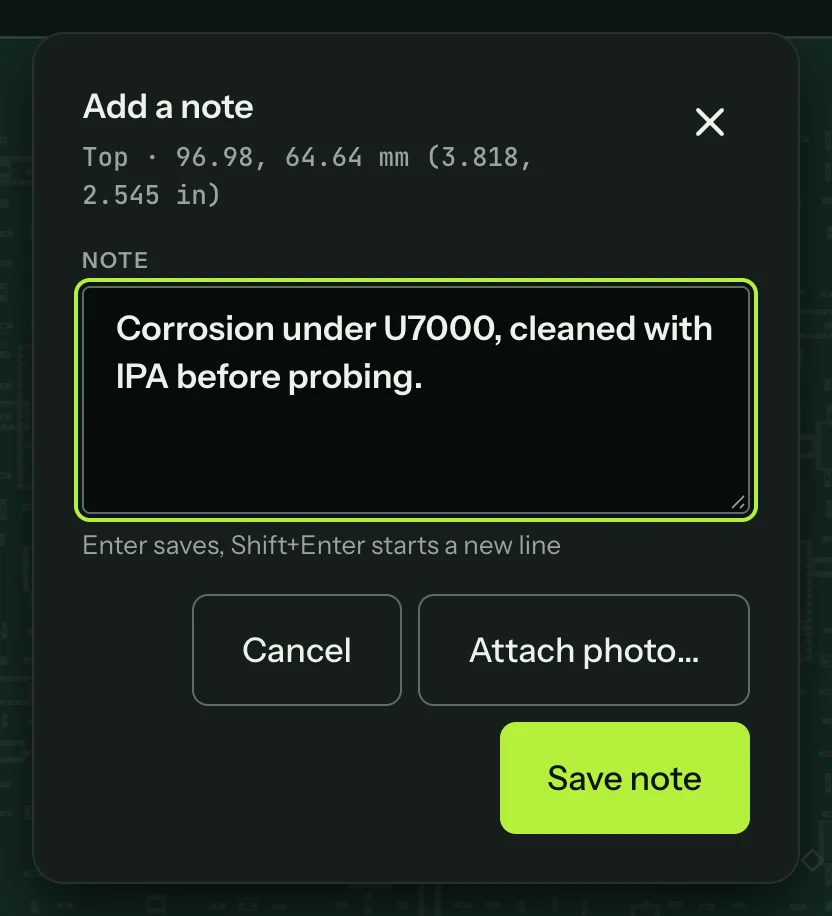
Type the note and press Save note (Enter saves, Shift+Enter starts a new line). During a session the note goes on the session's timeline and its reports. With no session running, it is kept with the board, so you see it next time you open that board.
Attach photo turns the same sheet into a photo. The words you typed become its caption.
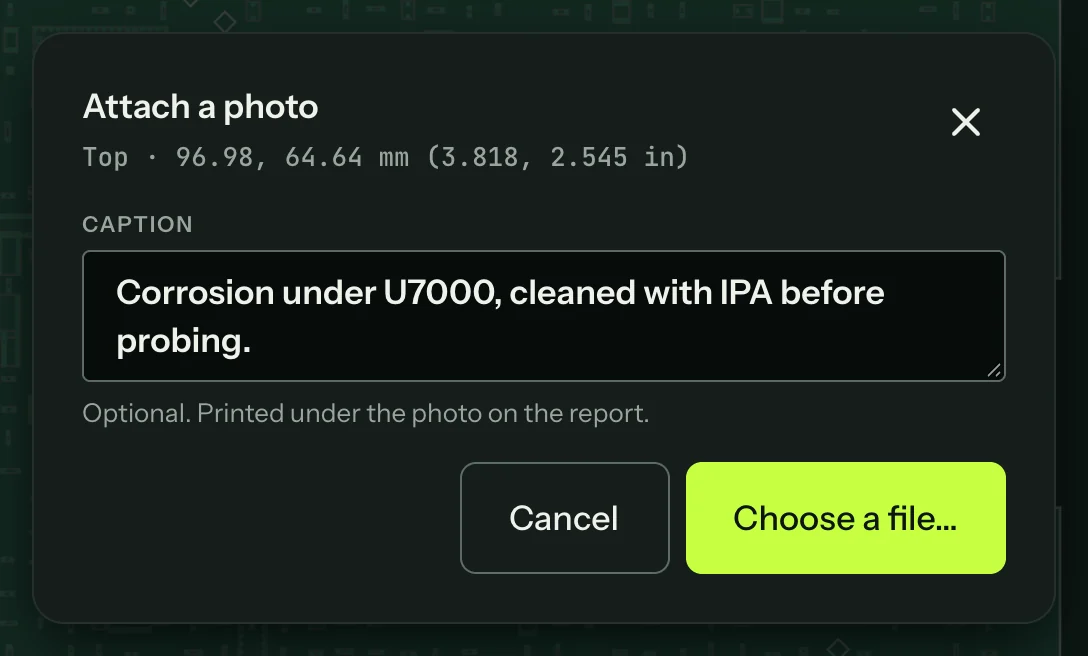
- Choose a file opens a JPEG, PNG, WebP or HEIC up to 20 MB.
- Take a photo appears when the computer has a camera, such as a USB microscope. It shows the live picture; Capture freezes a frame and Save photo keeps it. The camera is only switched on while the sheet is open.
The photo is copied into the session on this bench straight away, signed in or not, and goes on the timeline with a thumbnail. When the bench is signed in, it uploads with the session so the web app and the phone can show it. Reports print bench photos under their caption.
When a step names a part your file doesn't have
Fault trees name parts by their reference on the schematic. Now and then a boardview spells a part differently (C7010_1), or lacks a test pad the tree uses. The board then shows a strip: "C7010 is not in this file. Search for it, or pick the pad yourself", with a Find button that searches for it.
If you can see the right pad, right-click it and choose Use this pad for C7010. The lead goes there for every later step on that part in this session. After a restart the bench asks again.