

Appearance
Settings: Reports
Everything here is printed on the reports this bench makes. Fill it in before your first job. Open Settings → Reports.
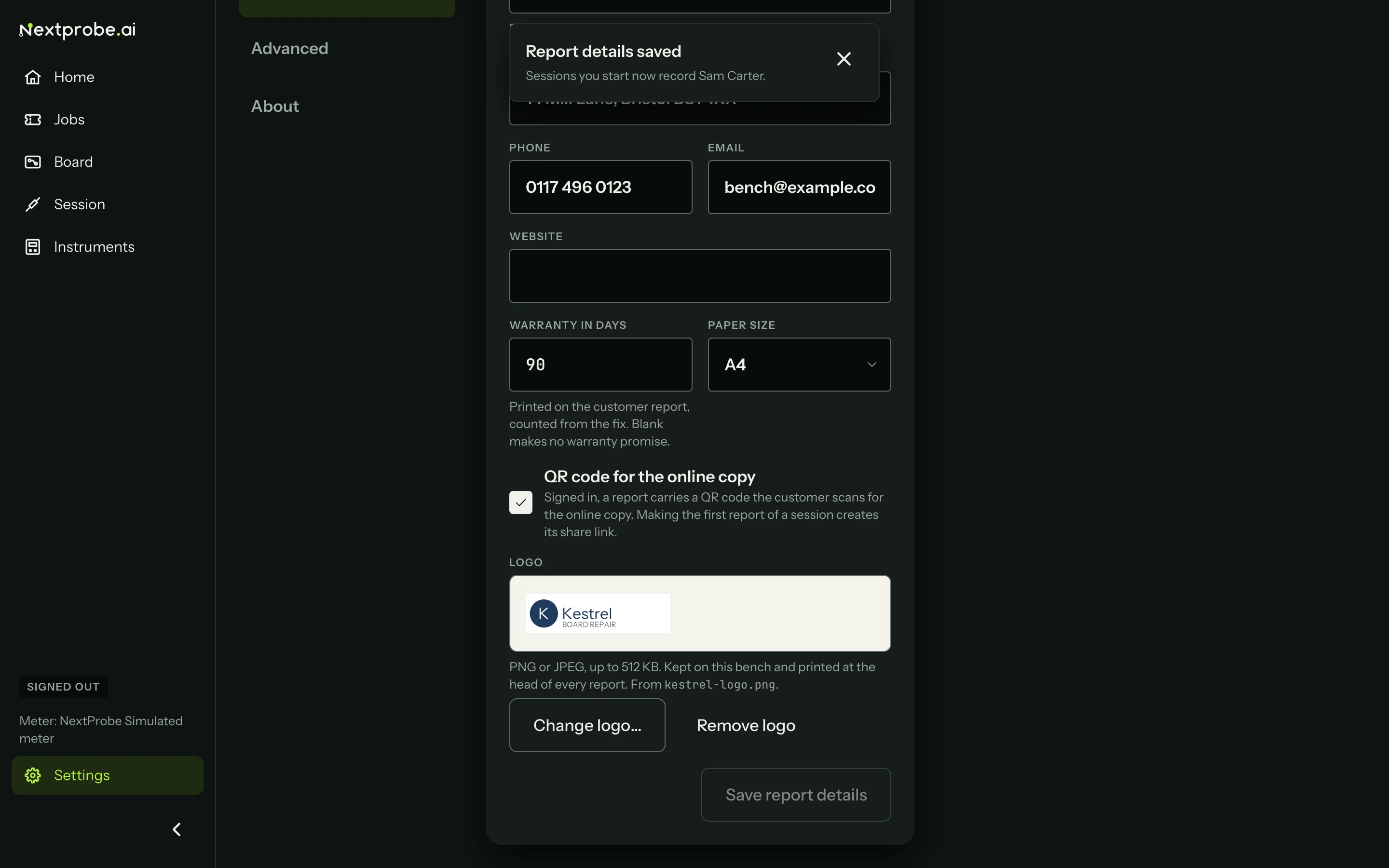
| Setting | What it does |
|---|---|
| Your name | Recorded on every session you start on this bench and printed on its reports. A bench signs in with a bench key, so it can't tell who is at it; this is how it knows. |
| Shop name, Address, Phone, Email, Website | The head of every report. |
| Warranty in days | Printed on the customer report, counted from the fix. Leave it blank to make no warranty promise. |
| Paper size | A4 or Letter. |
| QR code for the online copy | On a signed-in bench, each report carries a QR code the customer scans to open the online copy of their report. The first report made for a session creates its share link; later reports use the same one. Untick it to leave the code off. |
| Logo | PNG or JPEG, up to 512 KB, kept on this bench. Choose logo… picks it, Change logo… and Remove logo replace or remove it. Without one, the NextProbe logo heads your reports. |
Press Save report details when you are done.
When the QR code is missing
A report is never held up for its QR code. If the session hasn't reached your workspace yet, or the server is slow to answer, the report is made without the code. Make it again once the bench has synced to add it.
See Reports for what each report holds, and Send the customer report for the online copy.